Connect your own domain
Use a domain you own, such as link.yourshop.com, for your short links and Bio Pages. Available on Creator and higher plans.
Updated October 12, 2026
You can show your short links and Bio Pages on your own domain, for example link.yourstore.example/r/spring-sale instead of ibuat.link/r/spring-sale. You connect the domain once for the whole workspace, then pick it on each link or Bio Page.
Connect a domain
- 1
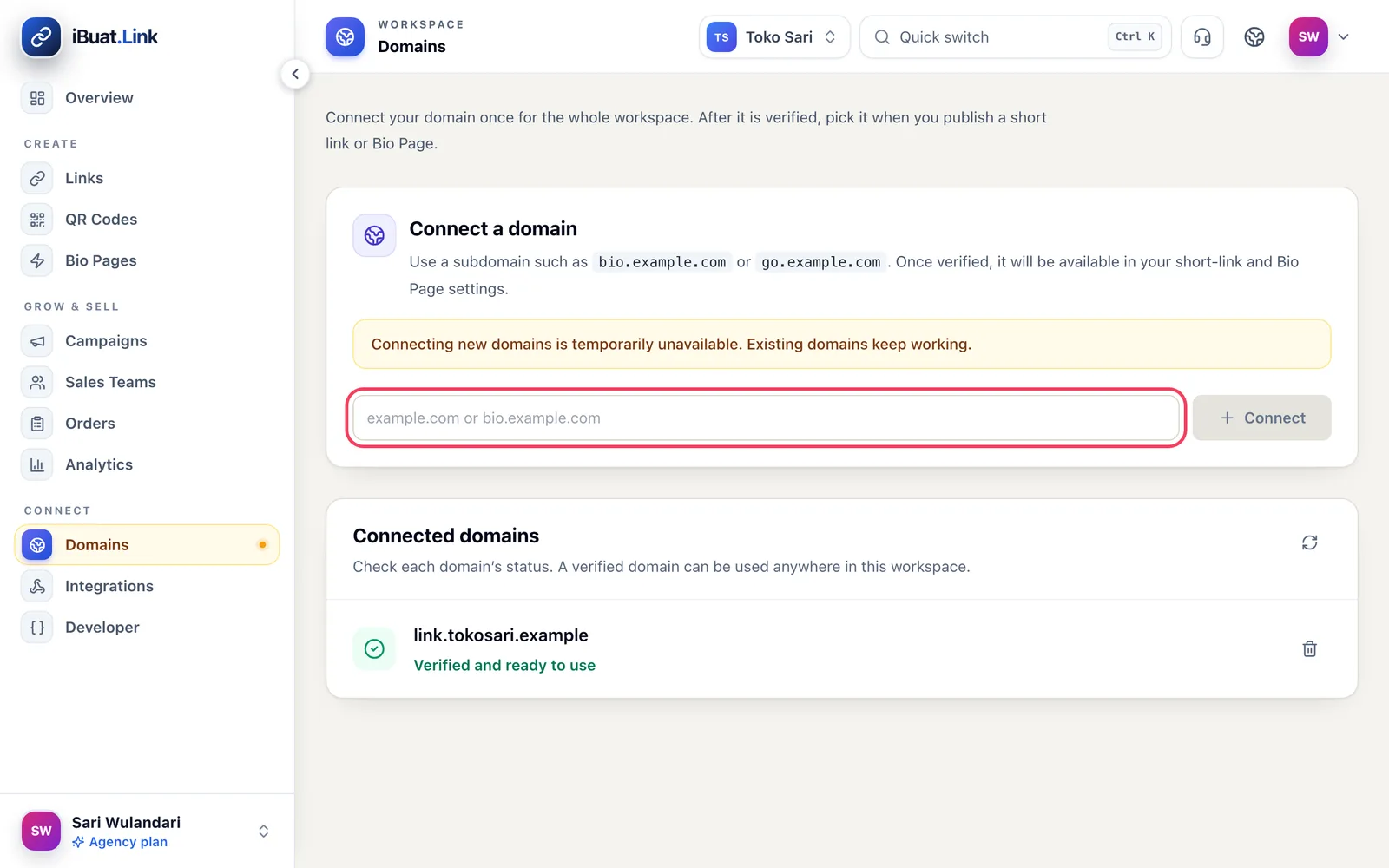
Open Domains
In the sidebar, under Connect, click Domains.
- 2
Enter the hostname
Under Connect a domain, type the domain without https://, for example link.yourstore.example, and click Connect.
- 3
Add the DNS records
A setup window opens with a CNAME record and a TXT record to add at your domain provider. See DNS records for a custom domain.
- 4
Verify
Click Verify domain. When the status reads Verified and ready to use, the domain is live.
Use the domain on a link or Bio Page
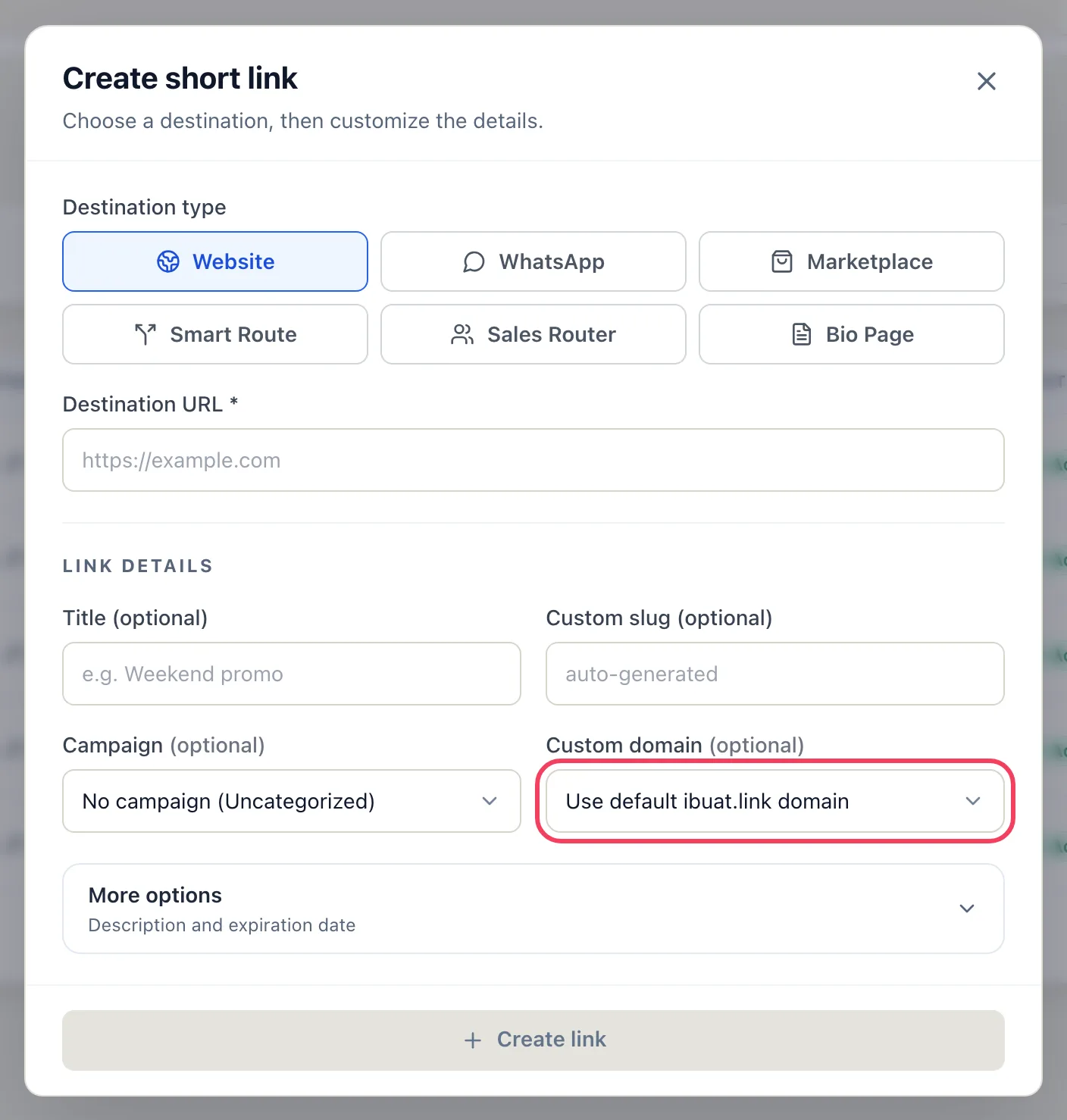
- Short link: click Create link on the Links page and choose the domain under Custom domain in Link details. For an existing link, open Edit link and change the same field.
- Bio Page: open the page in the editor, go to the Settings tab, pick the domain under Custom domain and click Save settings. The Bio Page then opens at the root of the domain, such as link.yourstore.example.
- One domain shows one Bio Page. Picking the domain on another Bio Page moves it there.
- The field only appears once you have a verified domain.
Plan limits
| Plan | Custom domains per workspace |
|---|---|
| Free | Not included |
| Creator | 3 |
| Pro | 10 |
| Business | 50 |
| Agency | 50 |
Only the workspace owner or an Admin can add or remove domains. Compare plans on Pricing.
Removing a domain or changing plans
To remove a domain, click the trash icon next to it and confirm with Remove domain. Short links and Bio Pages that used it go back to their normal ibuat.link address. If your plan stops covering a domain, visitors who open it are sent to the same link or Bio Page on ibuat.link, and the domain shows that it is beyond your plan’s limit until you upgrade or remove another one.
Related articles
- DNS records for a custom domainA custom domain needs two DNS records at your domain provider: a CNAME that points it to iBuat.Link and a TXT record that proves you own it.
- Custom domain won’t verifyWhat each domain status and verification message means, how long verification can take, and the DNS mistakes that usually cause it.
- Create a short linkEvery field in the Create short link form: destination, title, custom slug, campaign, custom domain, expiration date and description, plus the limits that apply.
- Publish your Bio Page and choose its URLPublish a draft so visitors can see it, find and change its address (ibuat.link/@username/slug), or show the page on your own domain.
Still need help?
Send us a ticket from your dashboard: the headset button at the top right, then Contact support. We reply there and by email.