Create an API key
Create a key on the Developer page to use the iBuat.Link API from your own apps or tools like n8n. Choose Read only or Read & write. Pro and higher plans.
Updated October 12, 2026
An API key lets your own apps, reports and automations use iBuat.Link: links, QR codes, campaigns, analytics, Sales Router, closings, orders, webhooks and more. API access is included on Pro, Business and Agency.
Create a key
- 1
Open Developer
In the sidebar, under Connect, click Developer.
- 2
Name it and choose a permission
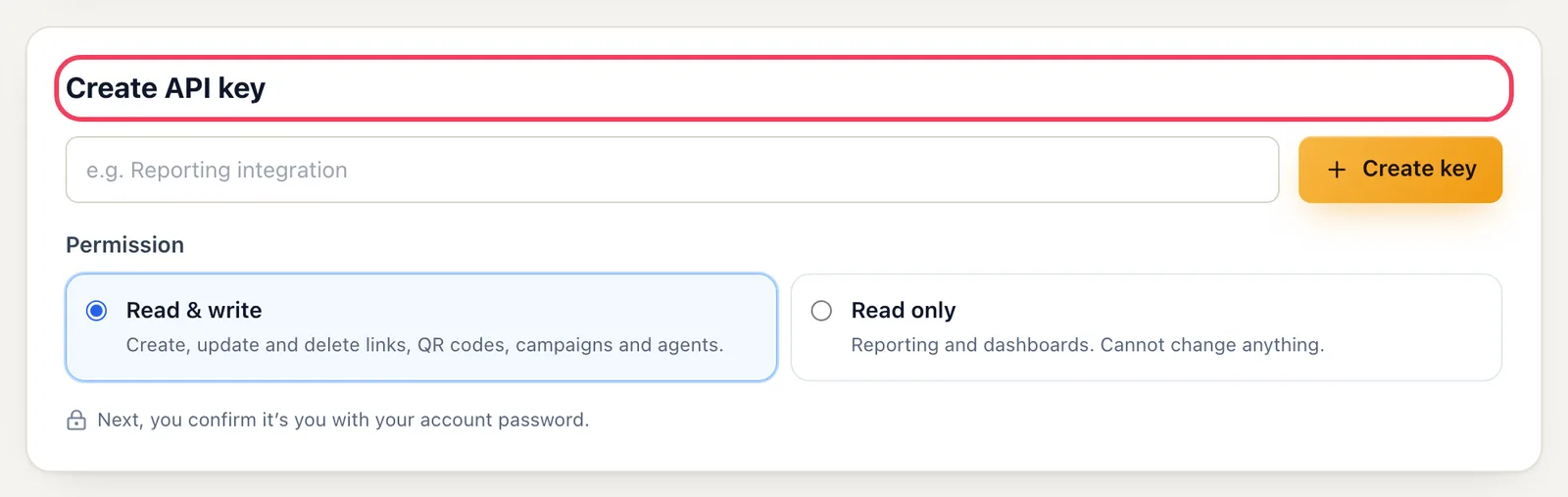
Under Create API key, type a name you’ll recognize, such as “n8n – Monday report”. Choose Read & write to create, update and delete links, QR codes, campaigns, agents and orders, or Read only for reports and dashboards that never change anything.
- 3
Confirm it’s you
Click Create key, enter Your account password and click Create key again. We ask because a key keeps working after you sign out or change your password.
- 4
Copy the key
The API key created window shows the full key once. Click Copy, store it somewhere safe, then click Done. Afterwards the list only shows its first few characters.
We also email you about every new key, so you notice one you didn’t make.
Use the key
Send it in the Authorization: Bearer header of every request to https://ibuat.link/api/v1. All endpoints, with examples you can try in your browser, are in the API reference.
Revoke a key
Click the trash icon (Revoke key) next to the key and confirm with Revoke key. Apps using it stop working right away, and this can’t be undone. If you think someone else has a key, use Revoke all to stop every key at once.
Good to know
- Only the workspace owner or an Admin can create and revoke keys.
- A workspace can have up to 20 active keys. Revoke one you no longer use to make room.
- After 5 wrong passwords, wait an hour before trying again.
- If your plan no longer includes API access, existing keys stop working, but you can still see and revoke them.
Related articles
- API rate limitsHow many API requests, new links and new QR codes your plan allows per hour, the headers that show what’s left, and what a 429 means.
- Create links and QR codes in bulk with the APICreate up to 100 short links or QR codes in one API request and get a result for each item. Plan quotas and hourly limits still apply.
- Record closings with the APIMark a Sales Router chat as a sale from your payment system, invoice tool or CRM by sending its Ref code and value to the API.
- Ready-made n8n templatesThe Automate with n8n card on the Integrations page has 8 workflows you can download and import into n8n, for alerts, reports, product links and more.
Still need help?
Send us a ticket from your dashboard: the headset button at the top right, then Contact support. We reply there and by email.