Change the date range and compare periods
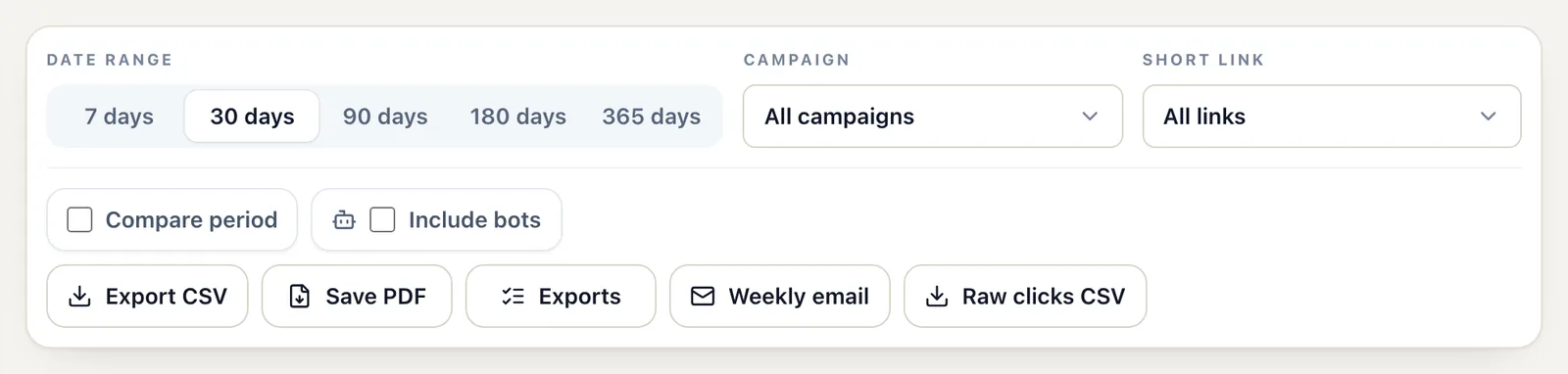
Pick 7, 30, 90, 180 or 365 days at the top of any analytics page. On the workspace Analytics page, Compare period shows the change from the period before.
Updated October 12, 2026
Every analytics page has a Date range bar with 7, 30, 90, 180 and 365 days. The range counts back from today, with today included, and the page reloads as soon as you pick one.
Ranges longer than your plan allows
How far back you can look depends on your plan: 30 days on Free, 90 on Creator, 180 on Pro, 365 on Business and Agency. Pick a longer range and the page shows Analytics locked with your plan’s limit and an upgrade button. See Analytics history and limits.
Compare with the previous period
- 1
Open Analytics
Click Analytics in the sidebar. Compare is on this workspace page only, not on a single link, QR code, Bio Page or campaign.
- 2
Tick Compare period
In the toolbar, tick Compare period.
- 3
Read the badges
The visits and Unique visitors cards get a badge such as +12% (green), -8% (red) or ±0%, compared with the same stretch of time right before your range.
When there’s no badge
- The period before had no visits, so there’s nothing to compare with.
- Part of the period before is older than your plan’s analytics history. That data is gone, and comparing with it would look like a fake jump, so it’s skipped. In practice the range has to be at most half your history: on Free, only 7 days can be compared.
Days follow UTC
Days in the range and the daily charts start at midnight UTC, and the Click heatmap is in UTC too. In Indonesia (WIB, UTC+7), a new day in your analytics starts at 07:00.
Related articles
- Read your analyticsThe Analytics page shows visits, unique visitors and where they came from across your workspace. Every link, QR code, Bio Page and campaign also has its own analytics page with the same cards.
- Analytics history and tracked-click limitsYour plan sets how far back analytics go (30 to 365 days) and how many clicks are tracked each month. At the limit your links keep working; only new visits stop being recorded.
- Filter analytics and handle botsOn the workspace Analytics page, narrow the numbers to one campaign or one short link. Bots are left out unless you tick Include bots. Here’s exactly what counts as a visit.
Still need help?
Send us a ticket from your dashboard: the headset button at the top right, then Contact support. We reply there and by email.