Filter analytics and handle bots
On the workspace Analytics page, narrow the numbers to one campaign or one short link. Bots are left out unless you tick Include bots. Here’s exactly what counts as a visit.
Updated October 12, 2026
Campaign and Short link filters
On Analytics (the workspace page), the toolbar has two menus:
- Campaign: everything in one campaign, meaning its links, the QR codes pointing to those links, and its Bio Pages. All campaigns shows the whole workspace.
- Short link: one link plus scans of the QR codes pointing to it (Bio Pages are left out). The menu lists up to 100 links, most-clicked first, and only that campaign’s links once you pick a campaign.
The analytics page of a single link, QR code, Bio Page or campaign is already filtered, so it has no such menus.
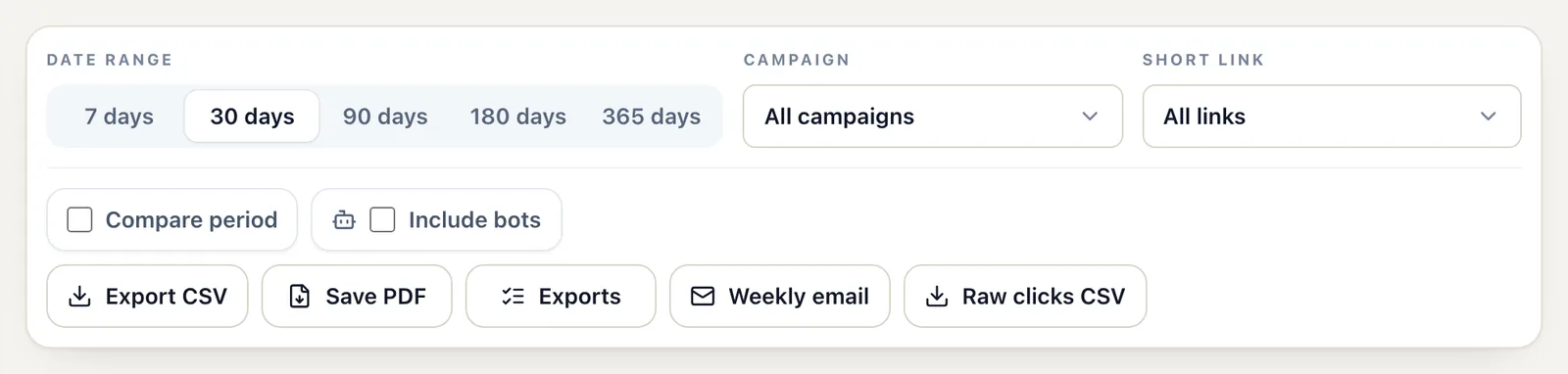
Include bots
Bots are visits from software, not people: link previews (WhatsApp, Facebook), search crawlers, monitoring tools and scripts. They’re hidden by default. Tick Include bots to count them; the bot card tells you how many there were either way.
- Bots never use your tracked-click quota.
- Bot visits are only recorded while your monthly quota still has room.
- On a Sales Router link, bots always get the fallback number and never take an agent’s turn.
What counts as a visit
- A short link click, a QR code scan and a Bio Page view each count as one visit.
- If the same person opens a link or QR code again within 30 seconds, it counts once.
- One person opening the same link more than 10 times in an hour only counts the first 10.
- A Bio Page view counts once per visitor every 30 minutes, however often they reload.
- Clicks on Bio Page buttons show on the Bio Page’s own analytics (Button clicks). They aren’t added to the workspace total, so one visit isn’t counted twice.
- Visits after your plan’s monthly tracked-click limit aren’t recorded. See Analytics history and limits.
Related articles
- Read your analyticsThe Analytics page shows visits, unique visitors and where they came from across your workspace. Every link, QR code, Bio Page and campaign also has its own analytics page with the same cards.
- Change the date range and compare periodsPick 7, 30, 90, 180 or 365 days at the top of any analytics page. On the workspace Analytics page, Compare period shows the change from the period before.
- Analytics history and tracked-click limitsYour plan sets how far back analytics go (30 to 365 days) and how many clicks are tracked each month. At the limit your links keep working; only new visits stop being recorded.
- See a campaign’s resultsOpen a campaign’s Analytics to see the visits from all its short links, QR codes and Bio Pages together, split by type, with trends, sources and locations.
Still need help?
Send us a ticket from your dashboard: the headset button at the top right, then Contact support. We reply there and by email.