Add a webhook
A webhook sends an HTTPS POST to n8n, your CRM or your own server when something happens in iBuat.Link. Available on Pro and higher plans.
Updated October 12, 2026
A webhook tells another tool the moment something happens: a chat goes to an agent, a closing is recorded, a link passes a click milestone, a page stops working or your plan is almost full. Deliveries run in the background, so your short links keep redirecting even when your endpoint is down.
Add a webhook
- 1
Open Integrations
In the sidebar, under Connect, click Integrations. Stay on the Webhooks tab and click Add webhook.
- 2
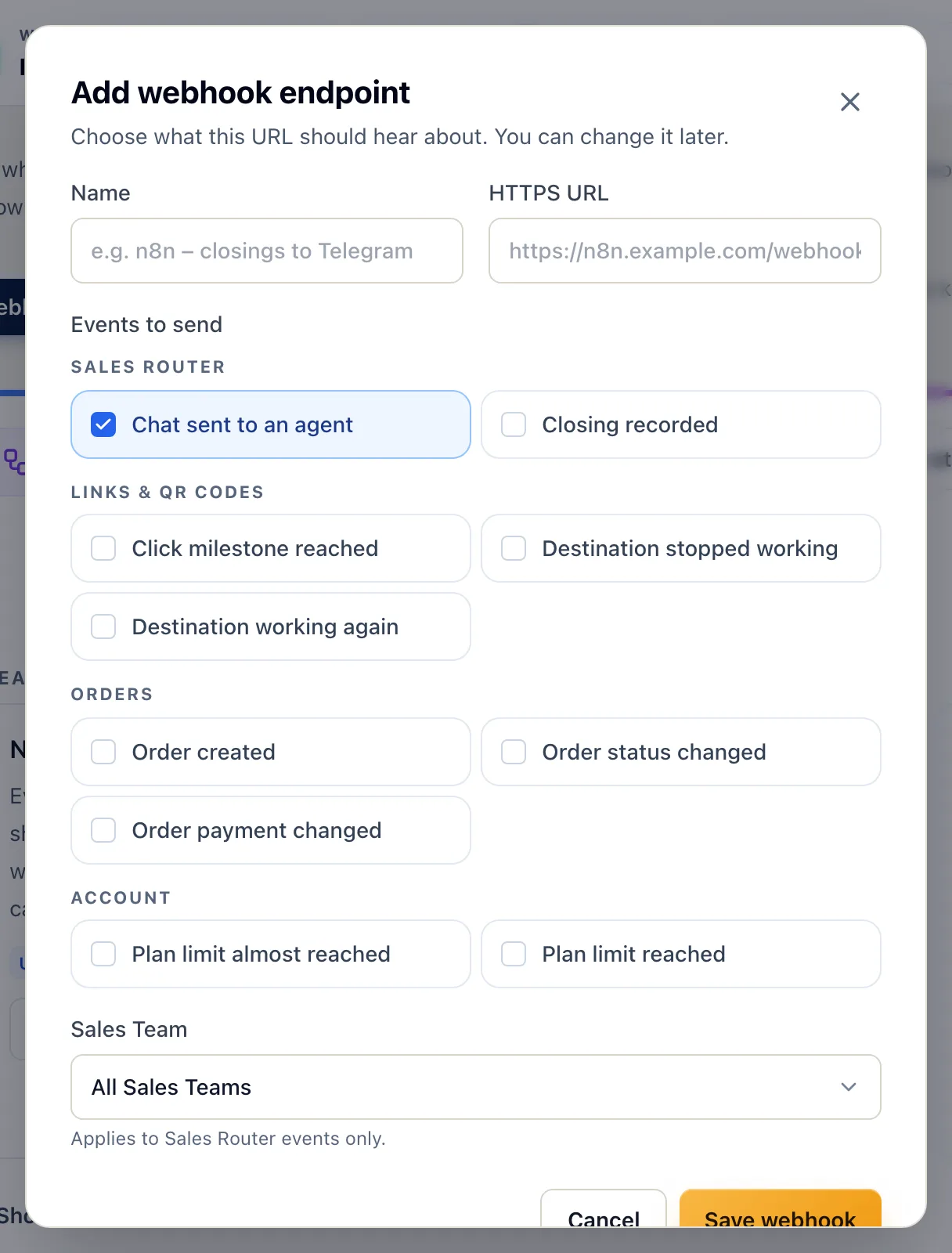
Fill in the form
Name is just for you, for example “n8n – closings to Telegram”. HTTPS URL is the address that receives the events.
- 3
Choose the events
Tick what this URL should hear about under Events to send. See Webhook events. If you tick a Sales Router event, you can also limit it to one Sales Team.
- 4
Save and copy the secret
Click Save webhook. The Copy your signing secret window appears. Copy the secret and store it in the receiving system. It is shown only once.
- The URL must be a public https:// address. Local or private addresses and URLs with a username or password are refused.
- Pro includes 5 webhooks, Business and Agency 15. See Pricing.
- Only the workspace owner or an Admin can add and change webhooks.
Lost the secret? Rotate it
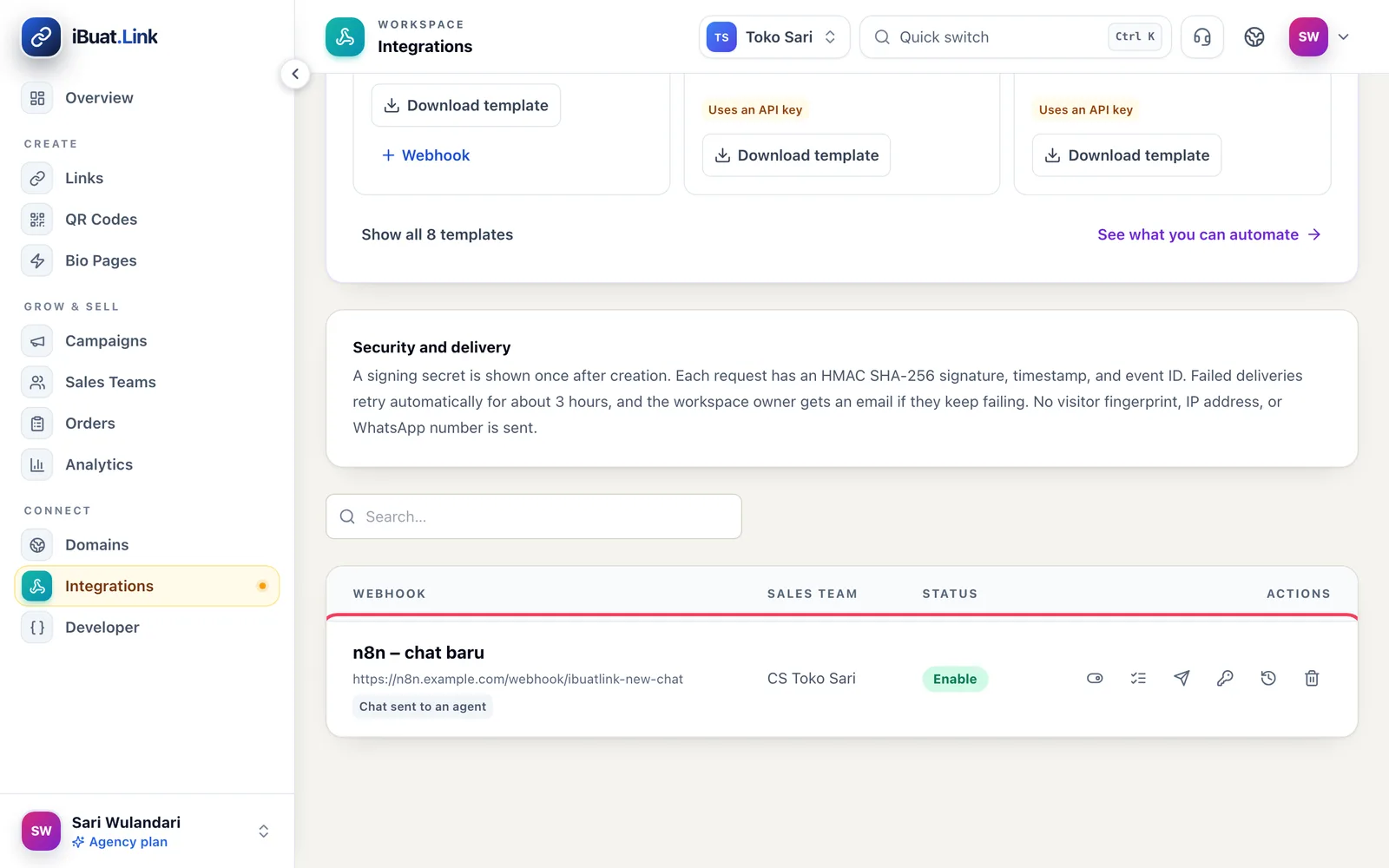
iBuat.Link can’t show a secret again. Click the key icon (Rotate secret) on the webhook’s row and confirm. The old secret stops working immediately and the new one is shown once, so update your receiver right away.
Other actions on a webhook
- Enable / Disable: a disabled webhook gets no new events.
- Edit events: change the name, URL, events or Sales Team.
- Send test: queues a signed test delivery. See Webhook deliveries and failures.
- Logs: every delivery attempt for that webhook.
- Delete: removes the webhook and any deliveries still waiting.
Related articles
- Webhook events and what they containThe 10 events a webhook can send, when each one fires, what the JSON body looks like and how the Sales Team filter works.
- Verify webhook signaturesCheck the x-ibuat-signature header so your endpoint only trusts requests that really come from iBuat.Link.
- Webhook deliveries, retries and failuresHow to read a webhook’s Logs, how long iBuat.Link keeps retrying, what happens when a delivery fails for good, and how to send a test.
- Ready-made n8n templatesThe Automate with n8n card on the Integrations page has 8 workflows you can download and import into n8n, for alerts, reports, product links and more.
Still need help?
Send us a ticket from your dashboard: the headset button at the top right, then Contact support. We reply there and by email.