Create a Bio Page
Build a link-in-bio page from a ready-made template or a blank page, then add your links, WhatsApp and products. It stays a draft until you publish it.
Updated October 30, 2026
A Bio Page is one page with all your important links: shop, WhatsApp, socials, products and offers. Put its address in your Instagram or TikTok bio, or behind a QR code.
- 1
Start a new page
In the sidebar, open Create → Bio Pages and click New Bio Page.
- 2
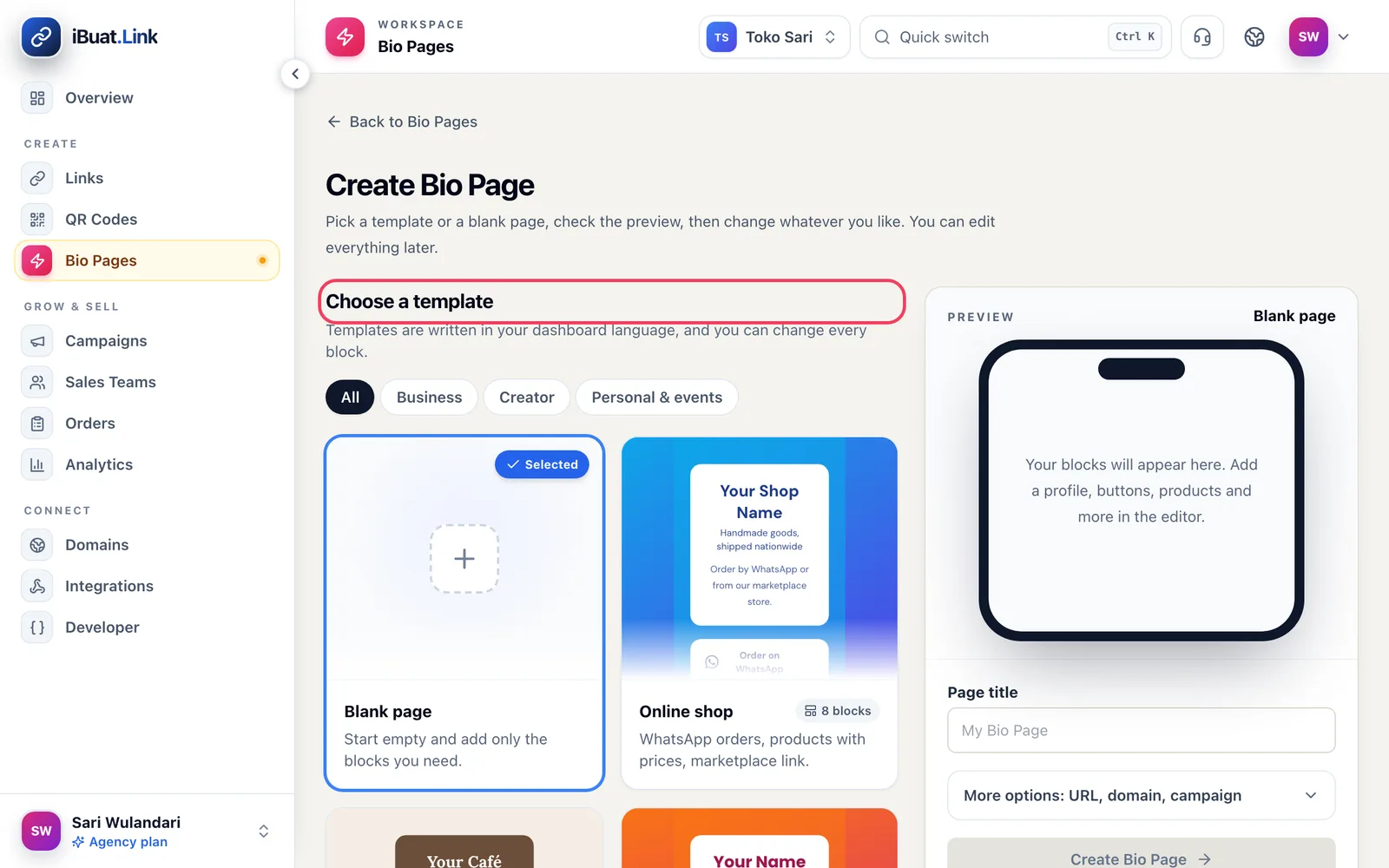
Choose a template
Filter by All, Business, Creator or Personal & events, then pick Online shop, Café & food, Creator & affiliate, Services & freelancer, Laundry, Salon & barbershop, Marketplace seller, Tutor & course, Digital business card, Invitation & event, or Blank page. The preview shows what you’ll get, and template text follows your dashboard language.
- 3
Name it
Type a Page title. Open More options: URL, domain, campaign if you want to set the URL slug, a custom domain or a campaign now. You can change all of them later.
- 4
Create it
Click Create with plus the template name (or Create Bio Page for a blank page). The editor opens with your page.
- 5
Make it yours, then publish
Edit the blocks and the design, then click Publish at the top of the editor. See Publish your Bio Page.
Good to know
- Your address: ibuat.link/@username/slug. The username is the Public Bio Page username in Account settings. Leave the slug empty and one is made for you.
- Example links: templates come with example links (example.com). Replace them first, because a page can’t be published while any are left.
- Templates on Free: a template is made without its FAQ block, because Video, Gallery and FAQ blocks are available from Creator. The preview shows what your page will start with.
- Drafts: a new page is a draft. Nobody sees it until you publish it.
- How many: the number of Bio Pages you can have depends on your plan, see Pricing.
Related articles
- Bio Page blocks: what each one doesThe 21 block types in the Bio Page editor, from Profile and Button to Price list, Opening hours and Save contact, and how to add, reorder, schedule and remove them.
- Change your Bio Page design: themes, fonts and colorsApply one of 10 themes, then fine-tune the background, font, text color and button shape on the Design tab of the Bio Page editor.
- Publish your Bio Page and choose its URLPublish a draft so visitors can see it, find and change its address (ibuat.link/@username/slug), or show the page on your own domain.
- Add WhatsApp, Smart Route or Sales Router buttons to a Bio PageA Button block can open one WhatsApp chat directly, or open one of your short links so it follows Smart Route rules or shares chats across a Sales Team.
Still need help?
Send us a ticket from your dashboard: the headset button at the top right, then Contact support. We reply there and by email.