Add WhatsApp, Smart Route or Sales Router buttons to a Bio Page
A Button block can open one WhatsApp chat directly, or open one of your short links so it follows Smart Route rules or shares chats across a Sales Team.
Updated October 12, 2026
Every Button block has a Button links to setting with four choices: Website, WhatsApp, Marketplace and Short link. Which one you need depends on who should get the chat.
One WhatsApp number
Choose WhatsApp, enter the WhatsApp number (pick the country code, then type the number the way you know it) and, if you like, a Prefilled message (optional). Every tap opens a chat with that number.
Smart Route or Sales Router
The Bio Page doesn’t have its own routing rules. Instead, the button opens a short link that already has them.
- 1
Set up a short link first
In Links, create a short link with the destination type Smart Route (rules by device, country or time, Creator and up) or Sales Router (chats shared across a Sales Team, Creator and up). Test it on its own.
- 2
Select the button
In the Bio Page editor, click the Button block on the Blocks tab or in the preview.
- 3
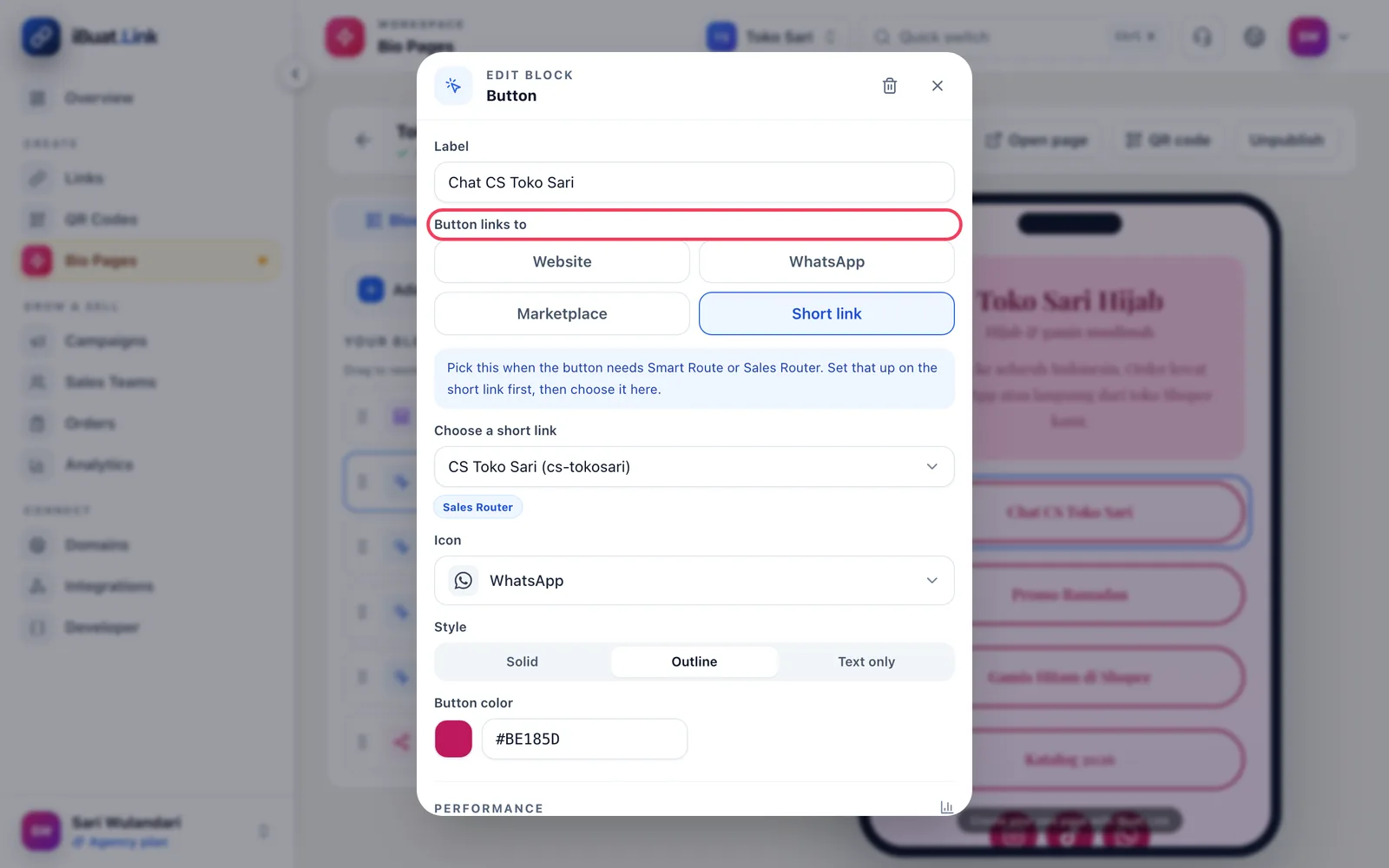
Choose the short link
Under Button links to, choose Short link, then pick it in Choose a short link. Links with Smart Route or Sales Router carry a badge, and the search box finds older links.
- 4
Test from a phone
Open the published page and tap the button to check where you land.
How clicks are counted
- The Bio Page counts the tap on the button (shown under Performance and in the page’s analytics).
- The short link counts the visit and records where it went: which rule matched or which agent got the chat.
- Both numbers are expected. They measure different steps.
Related articles
- Send visitors to different places with Smart RouteA Smart Route link checks the visitor’s device, country or time of day and sends them where you set for that case, with a fallback for everyone else.
- Create a Sales Team for WhatsApp chatsA Sales Team shares new WhatsApp chats between your agents. Create the team, add agents, then point a short link at it with the Sales Router destination.
- Bio Page blocks: what each one doesThe 21 block types in the Bio Page editor, from Profile and Button to Price list, Opening hours and Save contact, and how to add, reorder, schedule and remove them.
- A WhatsApp link doesn’t open the chatAlmost always the number: it needs the right country code and must be on WhatsApp. Also check the message, the app and, for Sales Router links, who is available.
Still need help?
Send us a ticket from your dashboard: the headset button at the top right, then Contact support. We reply there and by email.