Create a campaign and add links, QR codes and Bio Pages
Group the short links, QR codes and Bio Pages of one promo or launch in a campaign. How to create one, add items to it, and what the automatic Uncategorized and QR destinations campaigns are.
Updated October 12, 2026
A campaign groups the short links, QR codes and Bio Pages of one promo, launch or channel. It doesn’t change how they work. It puts them together so you can see their results in one place.
- 1
Open Campaigns
In the sidebar, go to Grow & sell → Campaigns and click Create campaign.
- 2
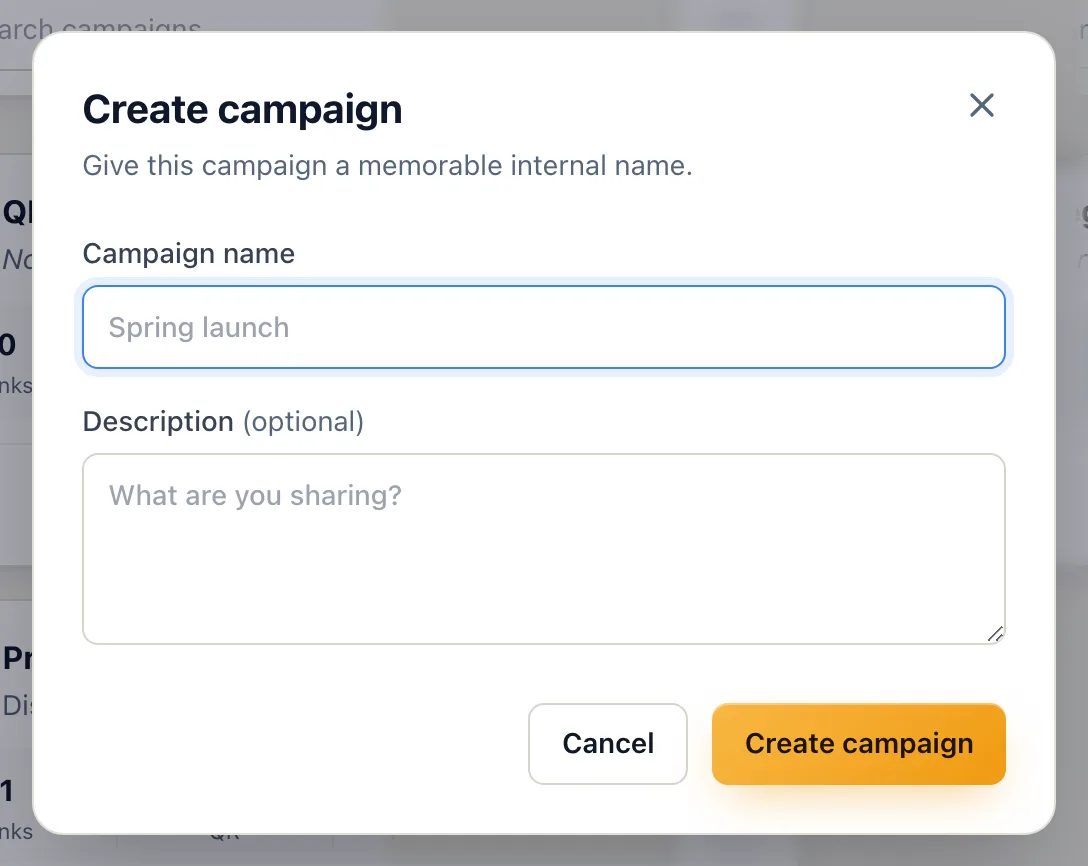
Name it
Enter a Campaign name your team will recognize, such as "Spring Sale", and an optional Description.
- 3
Save
Click Create campaign. It appears in the list with zero items, ready to fill.
Add items to a campaign
Each item belongs to one campaign at a time. You choose it in the item’s Campaign field:
| Item | When creating | Later |
|---|---|---|
| Short link | Campaign in the Create link form | Edit the link and change Campaign. Its clicks so far move with it. |
| QR code | Campaign under Details in the create form | On the QR code’s page, click the gear on Customization, change Campaign, then Save changes. |
| Bio Page | More options: URL, domain, campaign | In the editor, Settings tab, change Campaign, then Save settings. |
The Create link button on a campaign’s page opens the Create short link form on Links with that campaign already picked under Campaign. You can still change it before you create the link.
The automatic campaigns
- A short link saved with No campaign (Uncategorized) goes into the Uncategorized campaign.
- A QR code saved with No campaign goes into the QR destinations campaign.
- Bio Pages left on No campaign are counted under Uncategorized.
- These are created for you the first time they’re needed and don’t count toward your plan’s campaign limit. You can rename them like any other campaign.
Edit or delete a campaign
On a campaign card, the pencil icon edits the name and description, and the trash icon deletes it. Only an empty campaign can be deleted. If it still holds items, you’ll see Campaign cannot be deleted: move those items to another campaign or delete them first. How many campaigns you can create depends on your plan, see Pricing.
Full tutorialHow to group your links and QR Codes into a CampaignRead the guideRelated articles
- See a campaign’s resultsOpen a campaign’s Analytics to see the visits from all its short links, QR codes and Bio Pages together, split by type, with trends, sources and locations.
- Create a short linkEvery field in the Create short link form: destination, title, custom slug, campaign, custom domain, expiration date and description, plus the limits that apply.
- Create a QR codeMake a QR code that opens a website, WhatsApp chat, marketplace listing, Smart Route, Sales Router or Bio Page. Every iBuat.Link QR code is dynamic, so you can change where it goes after printing.
- Create a Bio PageBuild a link-in-bio page from a ready-made template or a blank page, then add your links, WhatsApp and products. It stays a draft until you publish it.
Still need help?
Send us a ticket from your dashboard: the headset button at the top right, then Contact support. We reply there and by email.