Create a QR code
Make a QR code that opens a website, WhatsApp chat, marketplace listing, Smart Route, Sales Router or Bio Page. Every iBuat.Link QR code is dynamic, so you can change where it goes after printing.
Updated October 28, 2026
Every QR code you make in iBuat.Link is dynamic. The code holds a short address (ibuat.link/qr/…), and that address sends people to the destination you set. That’s why you can change the destination later without printing a new code.
- 1
Open the form
In the sidebar, go to Create → QR Codes and click Create QR code.
- 2
Choose where it goes
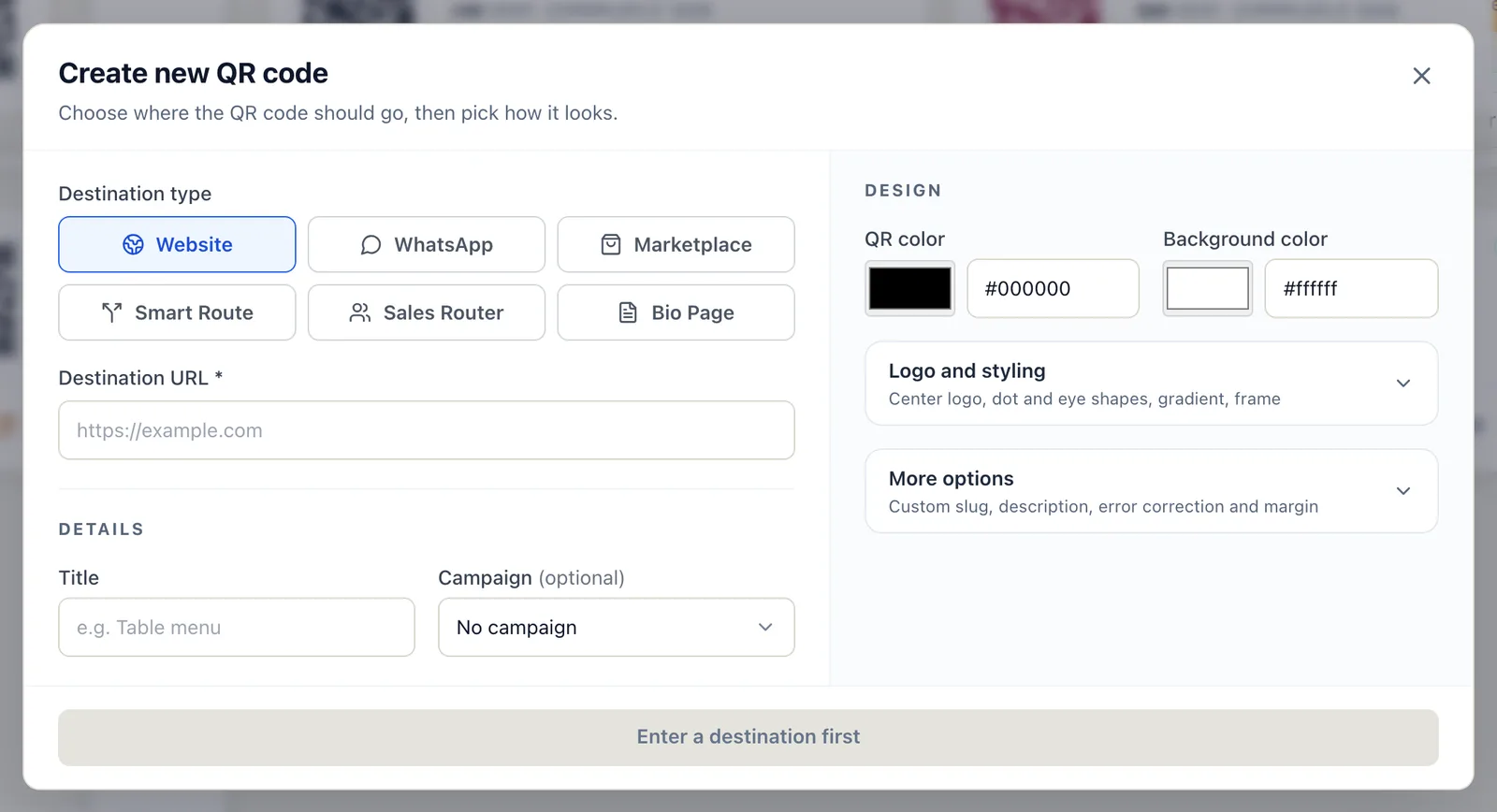
Pick a Destination type (Website, WhatsApp, Marketplace, Smart Route, Sales Router or Bio Page) and fill in its fields. Smart Route needs Creator or higher; on Free its tile shows a lock. They work the same as for short links, see Link destination types.
- 3
Add the details
Give it a Title you’ll recognize later, such as "QR Kemasan" or "Table menu". You can also pick a Campaign.
- 4
Pick the look
Set QR color and Background color. Logo and styling and More options hold the rest, see Customize your QR code’s design. If your workspace has a brand kit, it’s already applied when the form opens.
- 5
Create it
Click Create QR code. Until the destination is filled in, the button reads Enter a destination first. The new code shows up in your QR Codes list, ready to download.
Good to know
- Custom slug: under More options you can choose the end of the address (lowercase letters, numbers and hyphens, up to 50). Leave it blank for a random one. It can’t be changed after the code is created, because printed codes depend on it.
- No campaign: a QR code saved with No campaign goes into the automatic QR destinations campaign. See Create a campaign.
- How many: the number of QR codes you can keep depends on your plan, see Pricing. Deleting a code frees a spot, but printed copies of it stop working.
- Bio Page destination: use it when one code should open your menu, catalog and WhatsApp together. While the page is still a draft, people who scan see "unavailable".
Related articles
- Customize your QR code’s designChange the colors, add your logo, pick the dot shape and the shape of the eyes, add a gradient or a "Scan me" frame, and set error correction. Every option is on every plan, Free included. From Creator up, save it all as a brand kit for your next QR codes.
- Download a QR code (PNG or SVG)Download any QR code as a PNG image or an SVG file, from the QR Codes list or the code’s own page. Which format to pick, and how to print it well.
- Change where a QR code goes (no reprint)Point a printed QR code at a new website, WhatsApp number, marketplace listing, route or Bio Page. The code and its address stay the same, so there’s nothing to reprint.
- A QR code doesn’t scanMost scan problems come from low contrast, a print that’s too small, too little blank margin, or a blurry file. Test the printed proof before printing a batch.
Still need help?
Send us a ticket from your dashboard: the headset button at the top right, then Contact support. We reply there and by email.