Change where a QR code goes (no reprint)
Point a printed QR code at a new website, WhatsApp number, marketplace listing, route or Bio Page. The code and its address stay the same, so there’s nothing to reprint.
Updated October 28, 2026
You can change a QR code’s destination as often as you like. The printed code doesn’t change, so stickers, menus and packaging already out there start opening the new destination on the next scan.
- 1
Open the QR code
In Create → QR Codes, click the gear icon (View details) on the code’s card.
- 2
Edit it
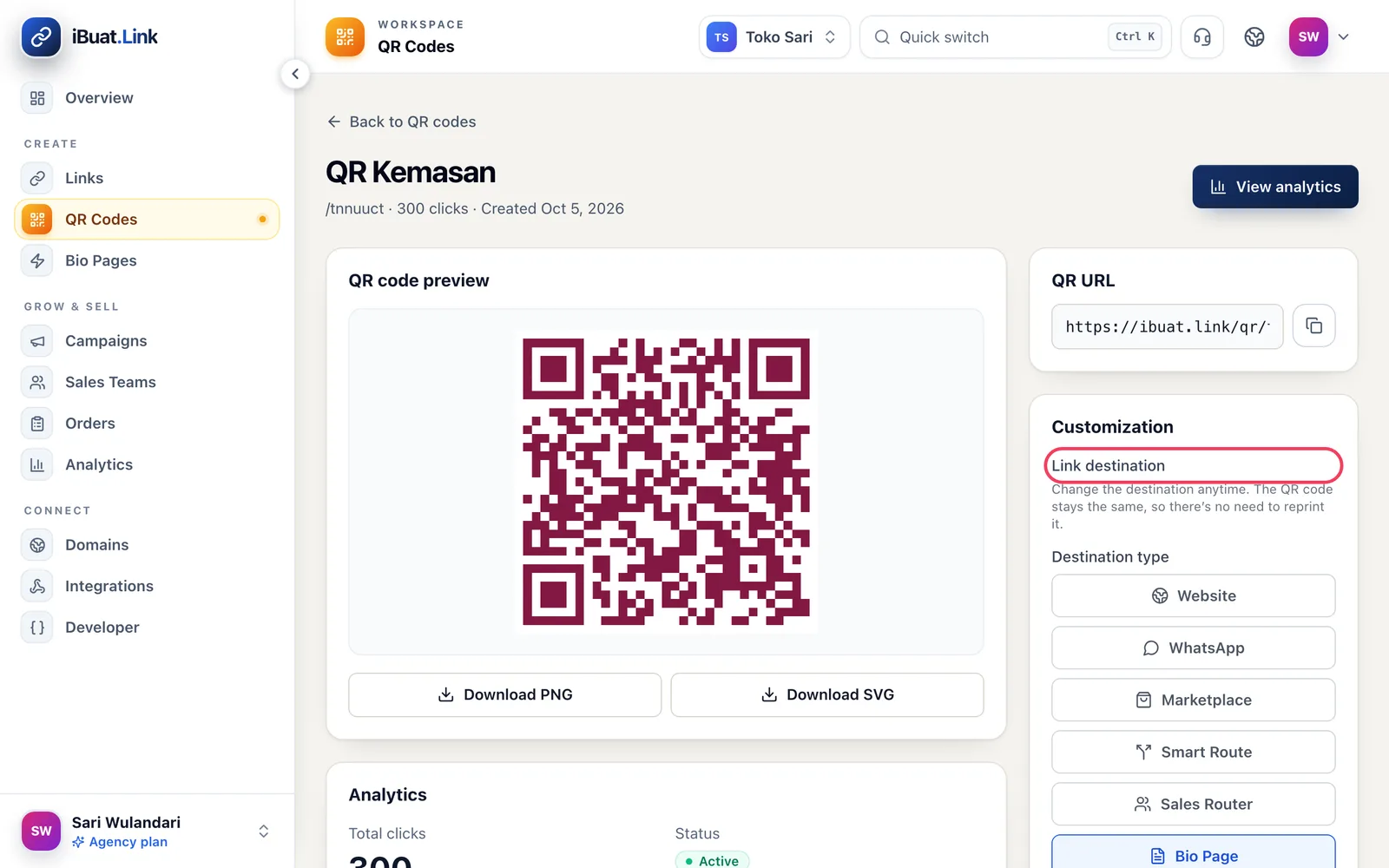
On the Customization card, click the gear button.
- 3
Set the new destination
Under Link destination, choose the Destination type and fill in the new website, number, listing, route or Bio Page.
- 4
Save
Click Save changes. The next scan goes to the new place.
What stays the same
- The QR image and its address (ibuat.link/qr/…), so every printed copy keeps working.
- The scan count and analytics history. New scans add to the same totals.
- The design and campaign, unless you change them in the same form.
Good to know
- You can switch the type too, for example from a website to a WhatsApp chat or a Sales Router team. Smart Route and Sales Router are available on Creator and up. A QR code that already uses Smart Route stays editable on any plan.
- If the code opens a Bio Page, renaming that page’s URL doesn’t break the code.
- Deleting a QR code is different: printed copies stop working. If copies are still out there, change the destination instead.
- If the page says "You can’t edit this QR code because the link behind it was suspended", contact support.
Related articles
- Create a QR codeMake a QR code that opens a website, WhatsApp chat, marketplace listing, Smart Route, Sales Router or Bio Page. Every iBuat.Link QR code is dynamic, so you can change where it goes after printing.
- Link destination typesThe six destination types in the link form (Website, WhatsApp, Marketplace, Smart Route, Sales Router and Bio Page) and what each one needs.
- Send visitors to different places with Smart RouteA Smart Route link checks the visitor’s device, country or time of day and sends them where you set for that case, with a fallback for everyone else.
- A QR code doesn’t scanMost scan problems come from low contrast, a print that’s too small, too little blank margin, or a blurry file. Test the printed proof before printing a batch.
Still need help?
Send us a ticket from your dashboard: the headset button at the top right, then Contact support. We reply there and by email.