Invite team members and clients, and what each role can do
Invite people by email from Workspaces & team, pick a role, and remove them any time. Removing someone also turns off the API keys and integrations they added.
Updated October 12, 2026
On the Agency plan you can give other people their own login to your workspaces. Your team (up to 5 people) is invited into your own workspace and then also works in every client workspace. A client is invited into their own client workspace only (up to 5 logins per client workspace).
Send an invitation
- 1
Open the right workspace
Switch to the workspace you want to invite someone into: your own for your team, a client workspace for that client.
- 2
Open Workspaces & team
Click your name at the bottom of the sidebar, then Workspaces & team, and scroll to People in ….
- 3
Invite
Enter their Email address, choose a Role and click Send invitation.
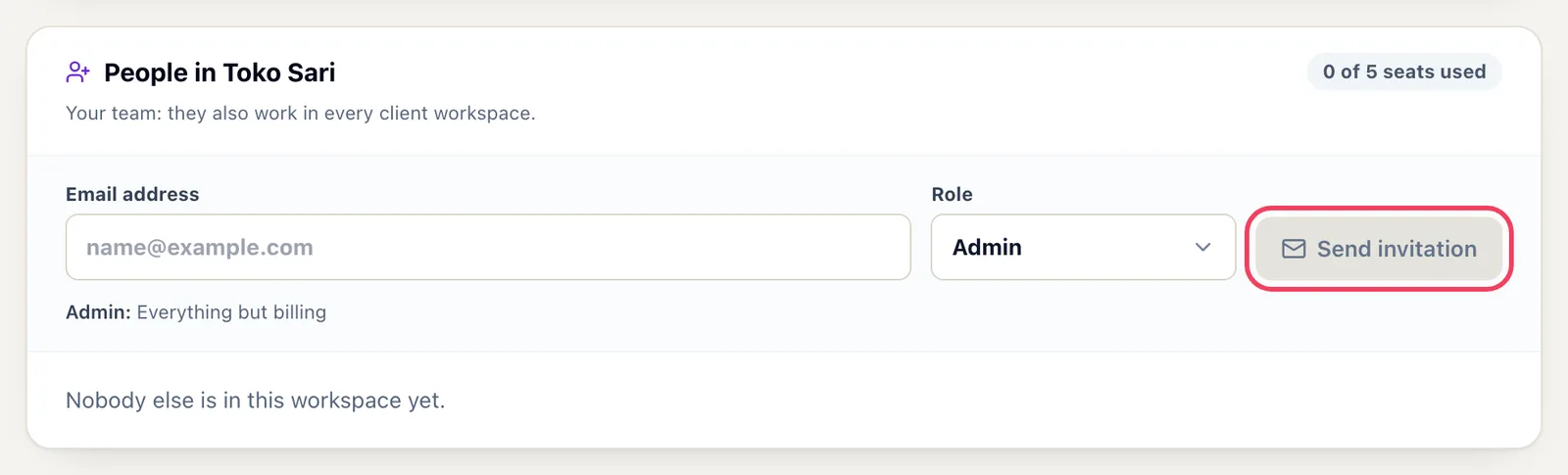
They get an email with a link that works for 7 days. They sign in or sign up free with exactly that email address, verify it, and click Accept and open the workspace. If the email can’t be sent, you get a link to copy with Copy invitation link and send yourself. Open invitations count toward the seat limit until they’re accepted, cancelled or expire.
Roles
| Role | Can do | Invited into |
|---|---|---|
| Admin | Everything but billing: content, domains, integrations, API keys and people | Your own workspace (team) |
| Editor | Create and change links, QR codes, Bio Pages, campaigns and Sales Teams | Your own workspace (team) |
| Client | Work on the content of their own workspace, without settings | A client workspace |
| Viewer | Read only | Either |
Only the owner and admins see and manage the people in a workspace. Billing always stays with the account that pays.
Remove someone or change their role
In the people list, change the role in the dropdown, click Remove, or Cancel invitation for someone who hasn’t joined yet. A member can also leave with Leave this workspace.
Full tutorialHow to manage client workspaces on the Agency planRead the guideRelated articles
- Client workspaces on the Agency planA client workspace keeps one client’s links, QR codes, Bio Pages, domains and reports apart from everything else, on Pro limits. Agency includes 10.
- Switch between workspacesUse the workspace switcher in the top bar to move between your own workspace, client workspaces and workspaces shared with you.
- Create an API keyCreate a key on the Developer page to use the iBuat.Link API from your own apps or tools like n8n. Choose Read only or Read & write. Pro and higher plans.
- Add a webhookA webhook sends an HTTPS POST to n8n, your CRM or your own server when something happens in iBuat.Link. Available on Pro and higher plans.
Still need help?
Send us a ticket from your dashboard: the headset button at the top right, then Contact support. We reply there and by email.