Add agents to a Sales Team
Add each agent’s name and WhatsApp number, plus working hours, timezone and weight if you need them. Change any of it later with Edit, and set an agent Inactive when they leave, without losing their history.
Updated October 13, 2026
Agents are the people who answer the chats. Each one needs a name and a WhatsApp number; the rest is optional.
Add an agent
- 1
Open the team
Go to Sales Teams and click Open on the team.
- 2
Click Add agent
In the Agents card, click Add agent.
- 3
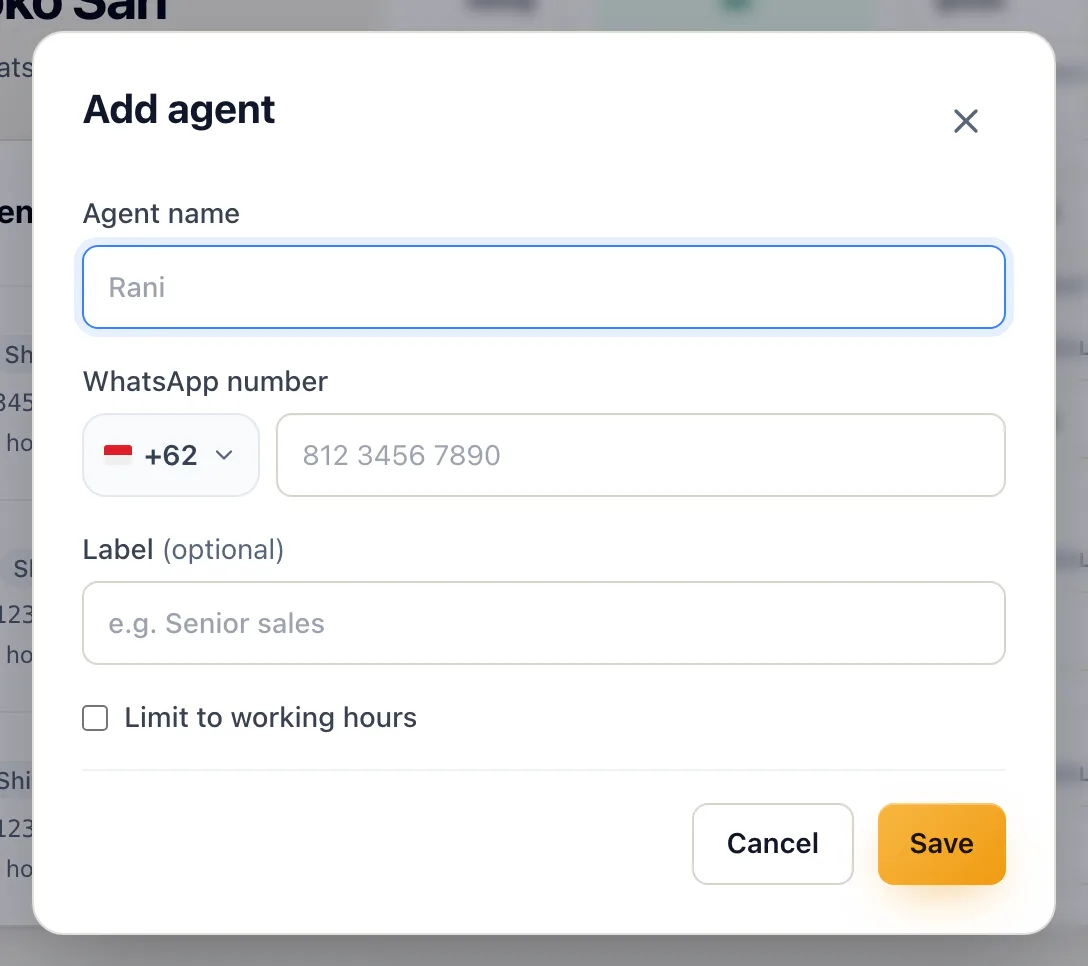
Name and number
Fill in Agent name and WhatsApp number, including the country code. A Label such as “Senior sales” is optional and only shows in your dashboard.
- 4
Working hours (optional)
Tick Limit to working hours, set a Start hour and End hour, and pick the agent’s Timezone. Without a timezone, the hours are read in UTC.
- 5
Save
Click Save. The agent starts getting chats right away.
How working hours work
- Hours are whole hours on a 24-hour clock, and the end hour isn’t included: 8 to 21 means 08:00 until 20:59.
- A window like 22 to 6 runs overnight. The same start and end hour means the whole day.
- Outside their hours an agent gets no new chats. If nobody is in hours, chats go to the team’s fallback number.
Weight
Weight (1 to 100) only appears when the team uses Weighted mode. An agent with weight 3 gets about three times as many chats as an agent with weight 1. If you switch an existing team to Weighted, agents added before start at weight 1. Click the pencil icon on an agent’s row to give them a different weight. See Routing modes.
Inactive, removing and changing an agent
- Agent status switches between Active and Inactive. An Inactive agent never gets chats, and their agent link stops working. Click it again to bring them back.
- The trash icon removes the agent. Their past routed visits stay on record.
- To change an agent’s name, WhatsApp number, label, working hours, timezone or weight, click the pencil icon on their row, make your changes and click Save. The change applies to new chats right away. Their past chats and their agent link stay as they are, so there’s no need to remove and add them again.
Related articles
- Set an agent to Available, Away or Off shiftAvailability pauses new chats for one agent without touching their settings. You, the agent on their own page, or your tools through the API can change it.
- How chats are shared: round robin, weighted, sticky and fallbackRound robin gives each new chat to the agent who has waited longest; weighted splits chats by the weight you set. Returning visitors can go back to the same agent, and the fallback number catches the rest.
- Give each agent their own pageThe agent link opens a private page where an agent sees the chats sent to them, marks sales and sets their status. No account or password needed.
- Create a Sales Team for WhatsApp chatsA Sales Team shares new WhatsApp chats between your agents. Create the team, add agents, then point a short link at it with the Sales Router destination.
Still need help?
Send us a ticket from your dashboard: the headset button at the top right, then Contact support. We reply there and by email.