Set an agent to Available, Away or Off shift
Availability pauses new chats for one agent without touching their settings. You, the agent on their own page, or your tools through the API can change it.
Updated October 12, 2026
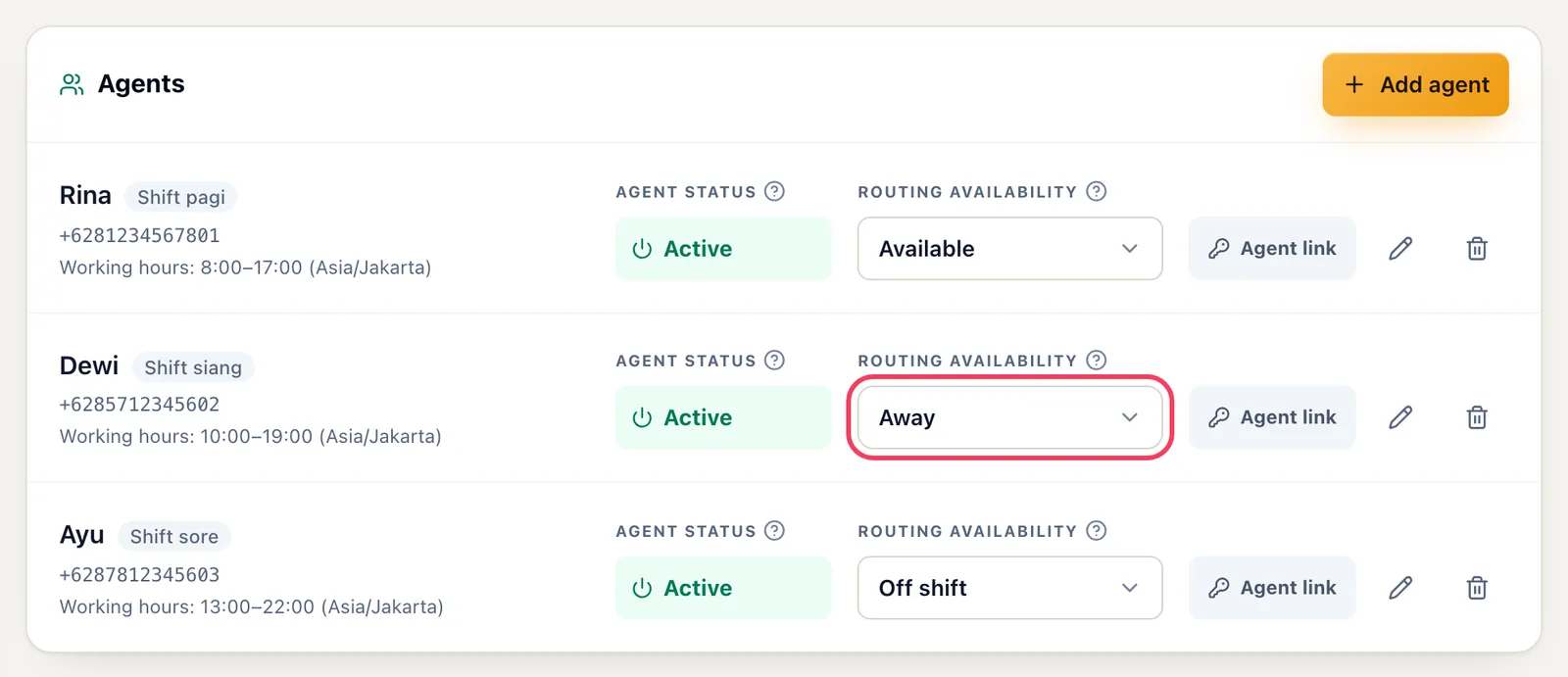
Each agent has a routing availability: Available, Away or Off shift. Only Available agents get new chats, and only inside their working hours. Away and Off shift both stop new chats for that agent; the two names just show why.
Change it in the dashboard
- 1
Open the team
Go to Sales Teams and click Open on the team.
- 2
Pick the status
In the agent’s row, choose Available, Away or Off shift in the Routing availability menu. It saves right away.
Who can change it
- You and your team members, in the dashboard. Members with the Viewer role can only look.
- The agent, under Your status on their own page. See Agent link.
- Your own tools, through the API with a Read & write key (Pro and up), for example to set agents Away when your shift system says so.
Details people trip over
- The status stays until someone changes it. It doesn’t switch back by itself when a shift starts, so for a fixed schedule use working hours instead.
- The menu is greyed out for an Inactive agent. Set Agent status back to Active first.
- This is routing status only. It has nothing to do with the agent being online in WhatsApp.
- If every agent is Away or Off shift, new chats go to the fallback number, and the team’s report warns that no agent can take chats right now.
Related articles
- Add agents to a Sales TeamAdd each agent’s name and WhatsApp number, plus working hours, timezone and weight if you need them. Change any of it later with Edit, and set an agent Inactive when they leave, without losing their history.
- How chats are shared: round robin, weighted, sticky and fallbackRound robin gives each new chat to the agent who has waited longest; weighted splits chats by the weight you set. Returning visitors can go back to the same agent, and the fallback number catches the rest.
- Give each agent their own pageThe agent link opens a private page where an agent sees the chats sent to them, marks sales and sets their status. No account or password needed.
Still need help?
Send us a ticket from your dashboard: the headset button at the top right, then Contact support. We reply there and by email.