A quick tour of the dashboard
What each part of the sidebar and the header does, so you know where to find links, QR codes, Bio Pages, billing, support and your settings.
Updated November 8, 2026
The sidebar on the left holds everything you make and connect. The bar along the top holds search, help, language and your avatar. Billing and account settings are in the account menu: click your avatar at the top right or your name at the bottom of the sidebar.
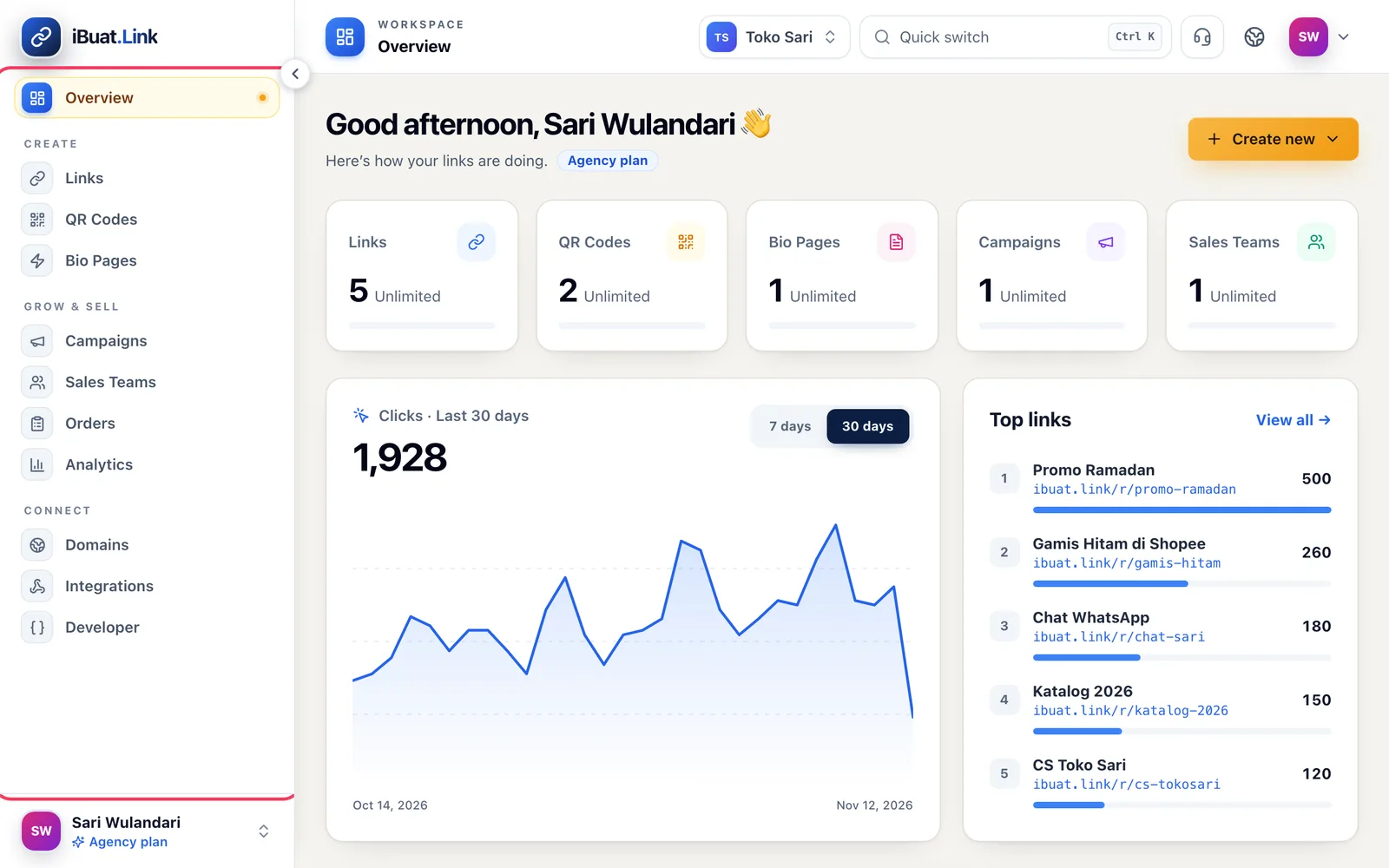
The sidebar
| Group | Pages | What you do there |
|---|---|---|
| (top) | Overview | Your workspace at a glance: usage, clicks, top links and what needs attention. |
| Create | Links, QR Codes, Bio Pages | Make short links, dynamic QR codes and link-in-bio pages, and change them later. |
| Grow & sell | Campaigns, Sales Teams, Orders, Analytics | Group links and QR codes per promo, share WhatsApp chats across sales agents, give each customer order a status link, and read clicks and visitors. |
| Connect | Domains, Integrations, Developer | Use your own domain, send events to webhooks or Google Sheets, and manage API keys. |
At the bottom of the sidebar you see your name and plan. Click it to open the account menu: Account settings, Workspaces & team (when you have it), Billing, Dark theme and Sign out. An amber dot on your picture means a Rupiah renewal bill is waiting on the Billing page. On a laptop, the round arrow on the sidebar’s edge folds it down to icons. On a phone, open the sidebar with the menu button at the top left.
The header, left to right
- Switch workspace (the button with your workspace’s name): the workspace you’re in, and the others you can switch to. It only appears on the Agency plan, or when you can open more than one workspace, for example because someone added you to theirs.
- Quick switch (Ctrl K): search your links, QR codes, campaigns and Bio Pages, jump to any page, or start creating something. See Quick switch.
- Headset button (Help & support): Contact support opens the Support page, where you chat with our team. Help Center opens these articles in a new tab. Take the tour walks you through the dashboard again. A red number on the button means support replied and you haven’t read it yet.
- Globe button: switches the dashboard between English and Indonesian. See Change the dashboard language.
- Your avatar: the account menu, the same one your name at the bottom of the sidebar opens: Account settings, Workspaces & team (when you have it), Billing, Dark theme and Sign out. An amber dot on it means a Rupiah renewal bill is waiting on the Billing page.
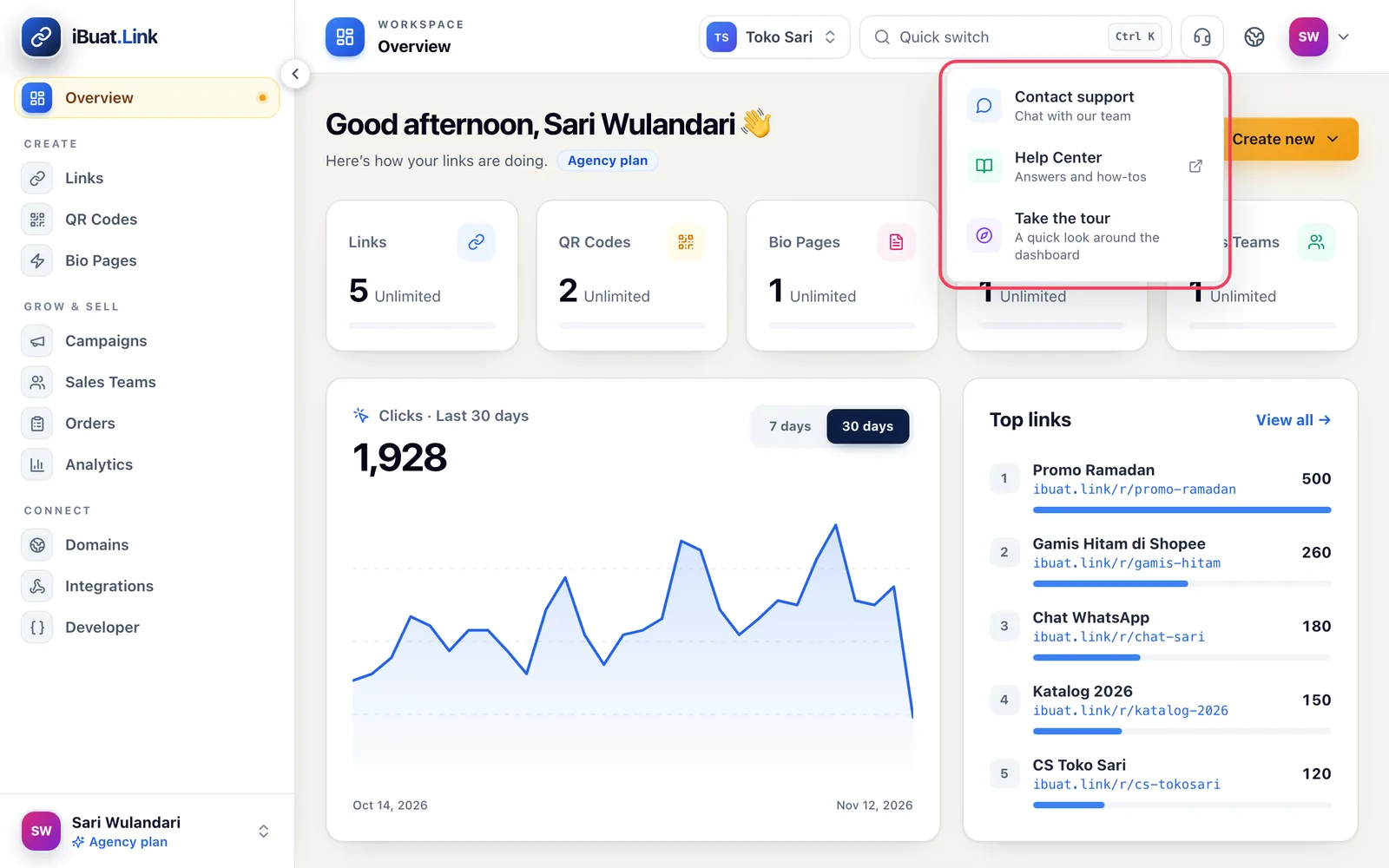
The guided tour
The first time you open the dashboard, a short guided tour highlights the main pages one by one. Move on with Next, go back with Back, or close it with Skip tour. A finished or skipped tour doesn’t show again, on any device. Links, Sales Teams and Orders each have a few steps of their own the first time you open them. To see the tour again, open the headset button and choose Take the tour.
Related articles
- What the Overview page showsThe Overview is your workspace at a glance: plan usage, clicks, top links, recent visits, and a Needs attention card for anything you should fix.
- Find anything fast with Quick switch (Ctrl K)Press Ctrl K (⌘K on a Mac) to search your links, QR codes, campaigns and Bio Pages, jump to any dashboard page, or start creating something.
- Contact supportOpen a ticket from the headset button in the dashboard header. Replies show up in the dashboard and in your email, usually within one business day.
- Switch between workspacesUse the workspace switcher in the top bar to move between your own workspace, client workspaces and workspaces shared with you.
Still need help?
Send us a ticket from your dashboard: the headset button at the top right, then Contact support. We reply there and by email.