What the Overview page shows
The Overview is your workspace at a glance: plan usage, clicks, top links, recent visits, and a Needs attention card for anything you should fix.
Updated October 17, 2026
Overview is the first page in the sidebar and the one you see after signing in. Everything on it is about the workspace you’re in.
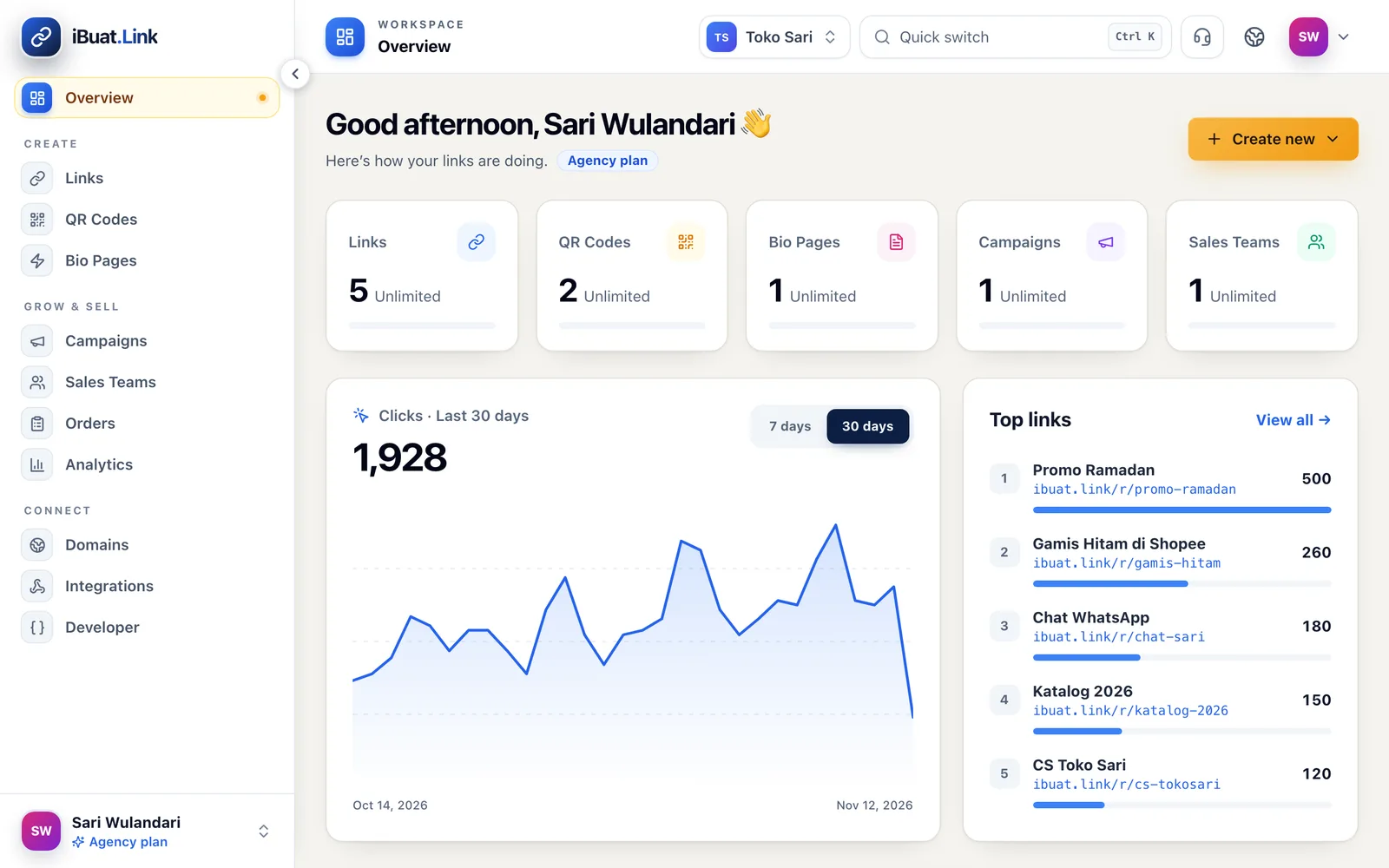
From top to bottom
Create new
The button at the top right starts a short link, QR code, Bio Page, campaign, Sales Team or order.
Get started in 3 minutes
Five first steps: create a short link, make a dynamic QR code, publish a Bio Page, organize with a campaign, and get your first click. Each step ticks itself once done. Hide checklist (the X) hides it in that browser only; it goes away for good when all five are done.
Usage cards
Links, QR Codes, Bio Pages, Campaigns and Sales Teams: how many you have against your plan’s limit, or Unlimited. The bar turns red from 90%. Needs an upgrade means your plan doesn’t include it.
Clicks
Clicks over the Last 7 days or Last 30 days, compared with the period before. Hover or tap the chart to see one day.
Top links and Recent activity
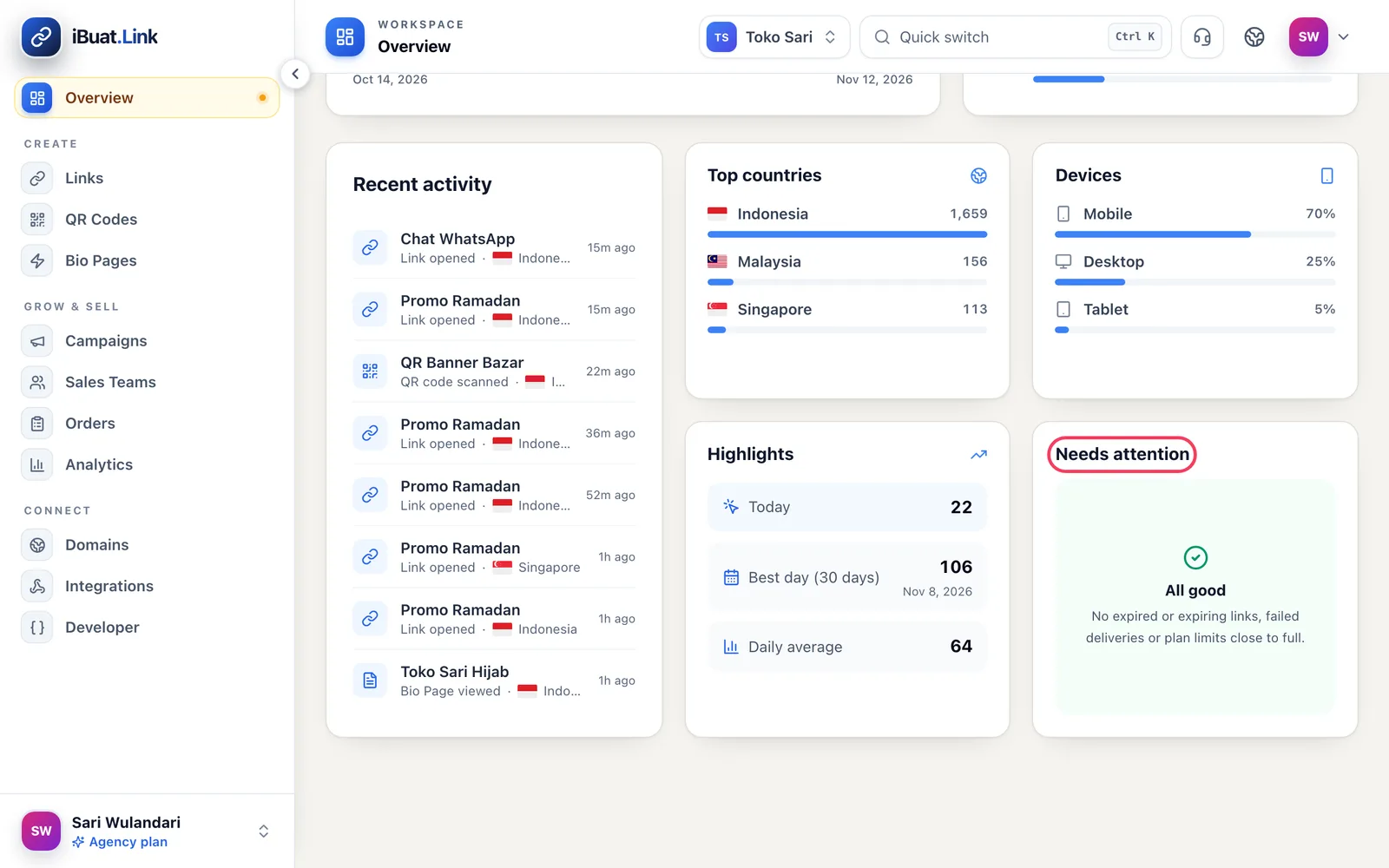
Your five most-clicked short links, and the latest visits to your links, QR codes and Bio Pages.
Top countries and Devices
Where visitors are and what they use. On the Free plan these cards are locked and show the plan that opens them.
Highlights
Clicks Today, your Best day (30 days) and the Daily average.
The Needs attention card
It lists what to fix now, up to five rows, each with a View link to the right page:
- A short link that has expired, or expires within 7 days.
- A destination page that isn’t opening. This is only checked for workspaces with a webhook that listens for the link.destination_down event.
- A webhook, or the Google Sheets export, whose latest delivery in the past 7 days failed.
- A plan limit (links, QR codes, Bio Pages, campaigns or Sales Teams) that is 80% full or more.
When nothing is wrong it says All good. On plans with a monthly click limit, the bottom of the card shows Tracked clicks this month against that limit.
Related articles
- A quick tour of the dashboardWhat each part of the sidebar and the header does, so you know where to find links, QR codes, Bio Pages, billing, support and your settings.
- Read your analyticsThe Analytics page shows visits, unique visitors and where they came from across your workspace. Every link, QR code, Bio Page and campaign also has its own analytics page with the same cards.
- Set an expiry date or turn a link offMake a link stop working on a set date, or switch it off and on by hand, and see what visitors get when it’s off.
- Webhook deliveries, retries and failuresHow to read a webhook’s Logs, how long iBuat.Link keeps retrying, what happens when a delivery fails for good, and how to send a test.
Still need help?
Send us a ticket from your dashboard: the headset button at the top right, then Contact support. We reply there and by email.