Find anything fast with Quick switch (Ctrl K)
Press Ctrl K (⌘K on a Mac) to search your links, QR codes, campaigns and Bio Pages, jump to any dashboard page, or start creating something.
Updated October 17, 2026
Press Ctrl K (⌘K on a Mac) on any dashboard page, or click Quick switch in the header. On smaller screens it’s the magnifying-glass button.
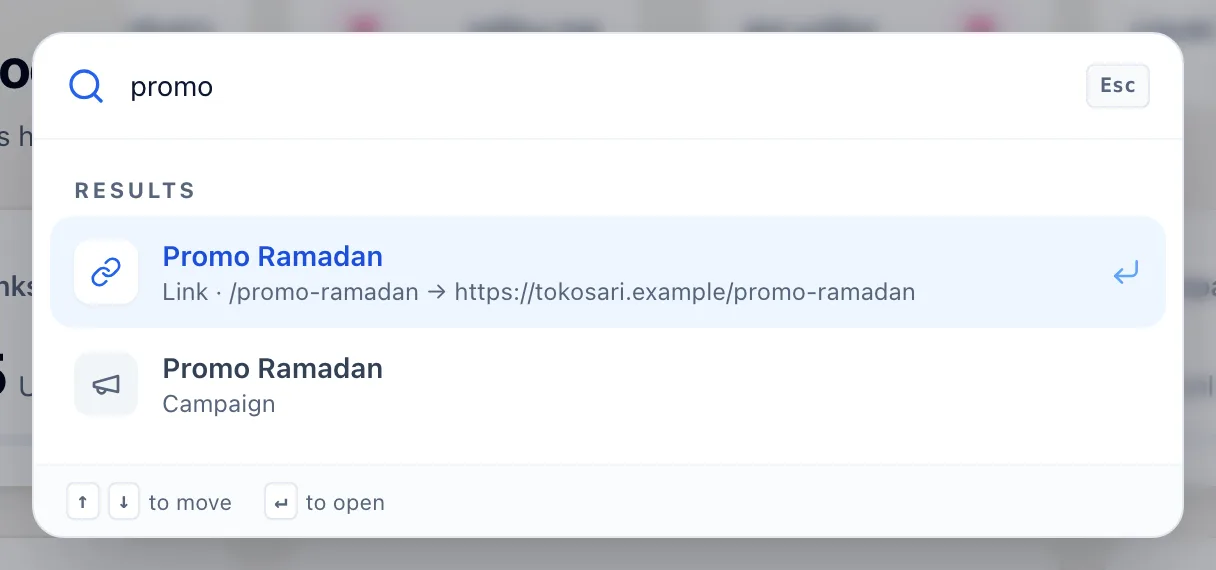
What it shows
| Section | What’s in it |
|---|---|
| Create | New short link, New QR code, New Bio Page, New campaign, New Sales Team, New order. |
| Go to | Every sidebar page, plus Billing, Settings and Support (and Workspaces & team when you have it). |
| Results | Appear as you type: links that match by title, slug or destination, plus QR codes, campaigns and Bio Pages, up to five of each. |
Typing also filters the Create and Go to lists, so “bill” takes you to Billing and “qr” to a new QR code.
Keyboard
- ↑ and ↓ move through the list.
- Enter opens the highlighted item.
- Esc closes Quick switch.
Related articles
- A quick tour of the dashboardWhat each part of the sidebar and the header does, so you know where to find links, QR codes, Bio Pages, billing, support and your settings.
- Switch between workspacesUse the workspace switcher in the top bar to move between your own workspace, client workspaces and workspaces shared with you.
- Create a short linkEvery field in the Create short link form: destination, title, custom slug, campaign, custom domain, expiration date and description, plus the limits that apply.
Still need help?
Send us a ticket from your dashboard: the headset button at the top right, then Contact support. We reply there and by email.