Turn on two-step sign-in
After your password, iBuat.Link asks for a 6-digit code sent to your email. Turn it on or off in Account settings → Security.
Updated October 12, 2026
Two-step sign-in adds a 6-digit code to every sign-in. We send the code to your account email, so someone who learns your password still can’t get in. Codes come by email only. Authenticator apps aren’t offered yet.
Turn it on
- 1
Open Security
Click your name at the bottom of the sidebar → Account settings → Security.
- 2
Turn it on
Next to Two-step sign-in, click Turn on. Enter Your password and click Turn on again.
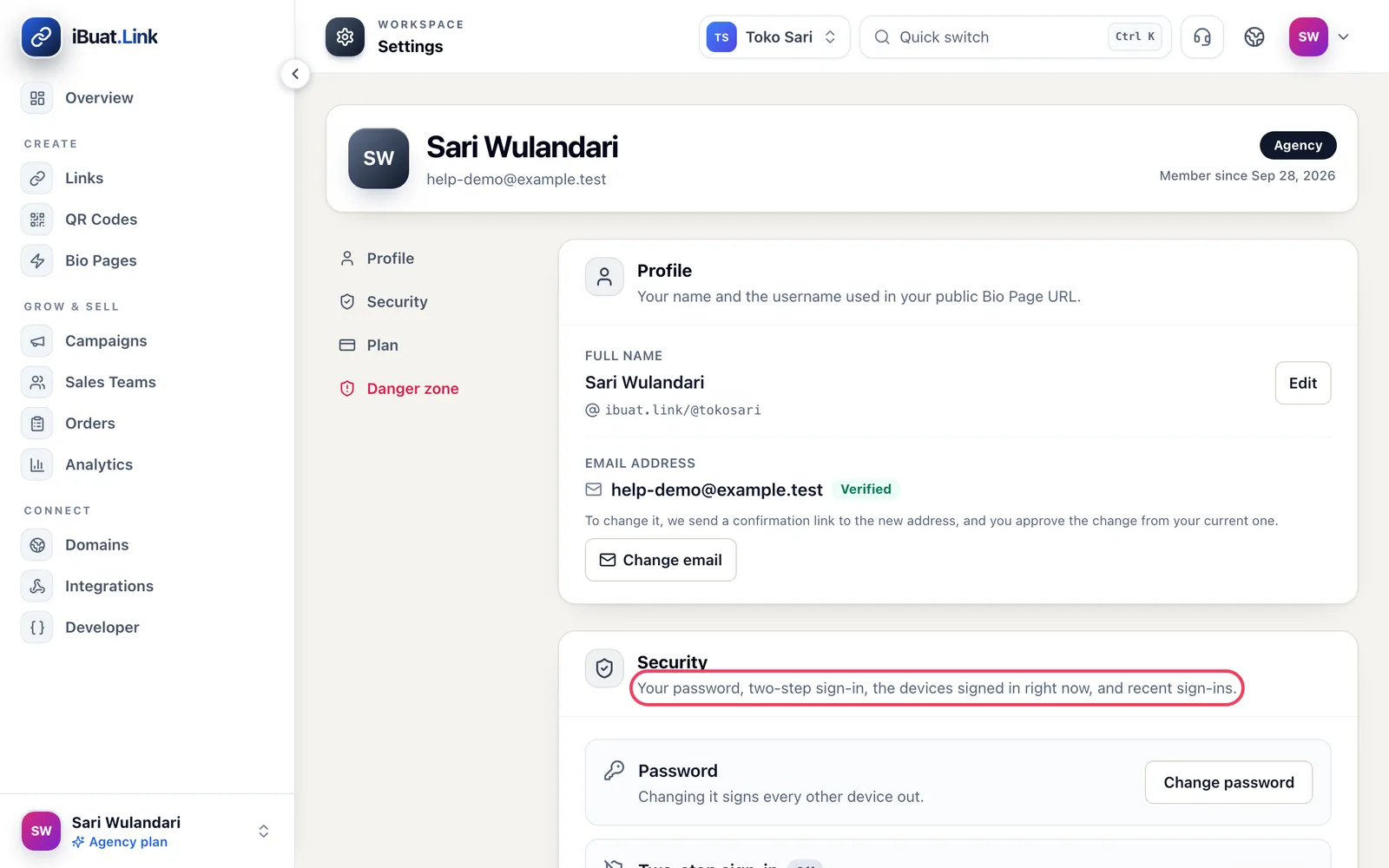
We email you every time two-step sign-in is turned on or off. To turn it off, use Turn off in the same place and enter your password.
How signing in works now
- After your password you see Check your email. Type the code into Sign-in code and click Verify and sign in.
- A code works for 10 minutes. Send a new code becomes available after 60 seconds.
- After five wrong tries with one code, ask for a new code. If the whole step takes longer than 15 minutes, enter your password again.
- Tick Don’t ask again on this browser for 30 days only on a computer or phone you own.
Related articles
- Change or reset your passwordSigned in, change it under Account settings → Security. Forgot it, use “Forgot password?” on the sign-in page to get a reset link that works for 1 hour.
- See where your account is signed inAccount settings → Security lists the devices signed in right now, with location and IP. You can sign devices out from there, and we email you when a new device or country signs in.
- Recover an account you can’t sign in toLost access to your email or your sign-in code? Send a recovery request. The current address can cancel it, and our team reviews it after 7 days.
- Emails from iBuat.Link aren’t arrivingCheck spam and promotions first. Our emails come from an @ibuat.link address, and each kind of link or code is only valid for a while.
Still need help?
Send us a ticket from your dashboard: the headset button at the top right, then Contact support. We reply there and by email.