Edit a short link
Change a link’s destination, title, status, campaign, domain or expiry. The short address stays the same, so everyone who already has it gets the new destination.
Updated October 12, 2026
On Links, click the pencil icon (Edit link) on the row, or open the link and click Edit. Change what you need, then click Save changes.
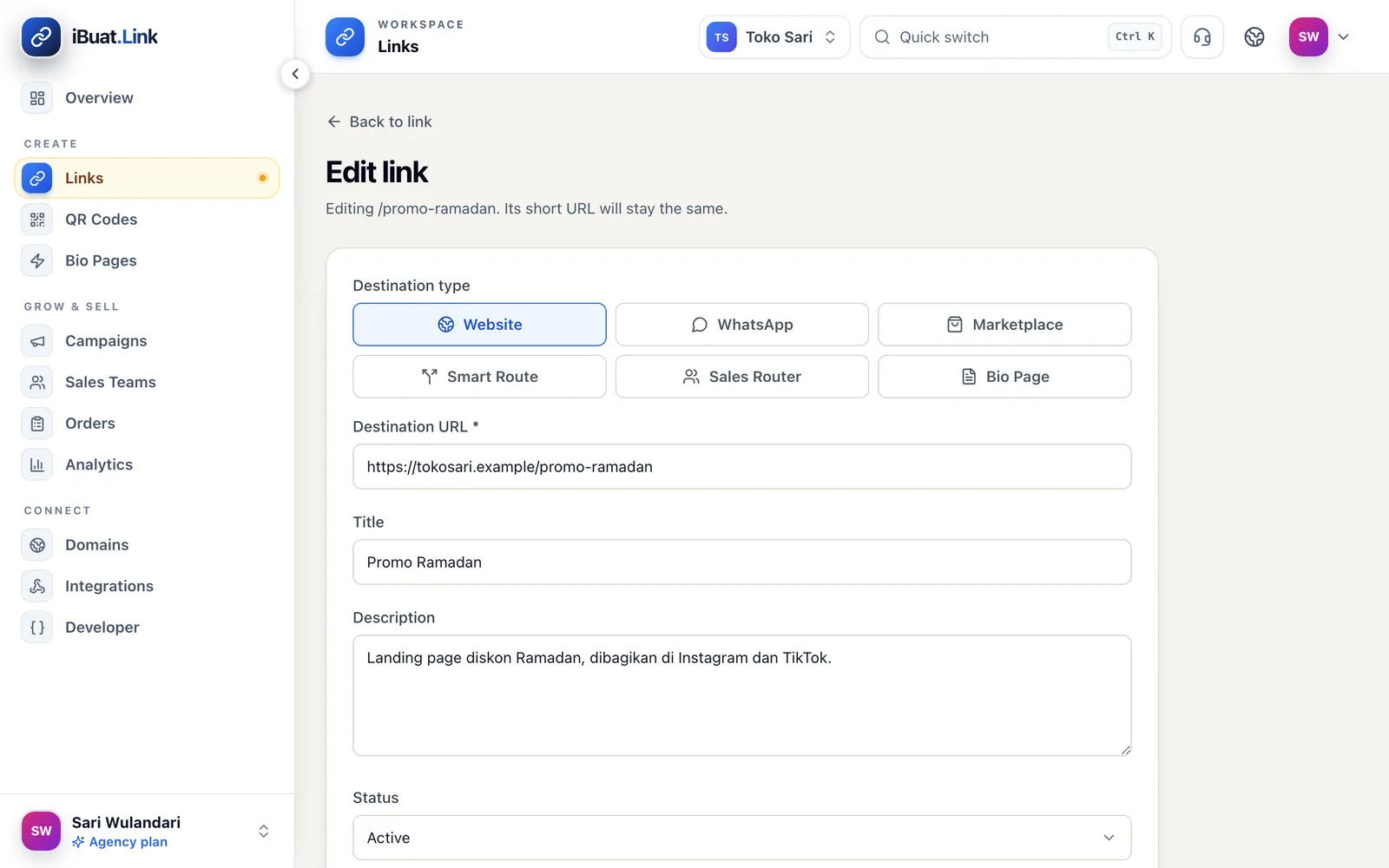
Destination
Change the address, or switch to another destination type.
Title and Description
Your own labels, only shown in the dashboard.
Status
Active or Disabled. See Expiry and turning a link off.
Campaign
Move the link to another campaign. Its clicks so far move with it.
Custom domain
Shown when you have a verified domain.
Expiration date
Set, change or clear it with Remove expiration.
What changes for people who already have the link
- The short address never changes, so posts, printed flyers and anything else that uses it keep working.
- The new destination applies from the next click, also for people who opened the link before. Browsers don’t keep the old destination.
- Clicks recorded so far stay with the link.
- A new destination goes through the same safety checks as a new link. If it’s refused, nothing is saved.
- Changing the custom domain changes the address the dashboard shows and copies. The ibuat.link address keeps working too.
Related articles
- Link destination typesThe six destination types in the link form (Website, WhatsApp, Marketplace, Smart Route, Sales Router and Bio Page) and what each one needs.
- Set an expiry date or turn a link offMake a link stop working on a set date, or switch it off and on by hand, and see what visitors get when it’s off.
- Choose your own link ending (custom slug)The rules for the custom slug at the end of a short link: 3–50 lowercase letters, numbers or hyphens, not a reserved word, and not used before by anyone.
- Change where a QR code goes (no reprint)Point a printed QR code at a new website, WhatsApp number, marketplace listing, route or Bio Page. The code and its address stay the same, so there’s nothing to reprint.
Still need help?
Send us a ticket from your dashboard: the headset button at the top right, then Contact support. We reply there and by email.